
Modern React Native has evolved significantly—Expo’s new architecture is stable, Hermes is the default engine, layout rendering has improved, and libraries like Reanimated and React Native Screens are widely adopted. Yet one issue continues to frustrate even experienced engineers:
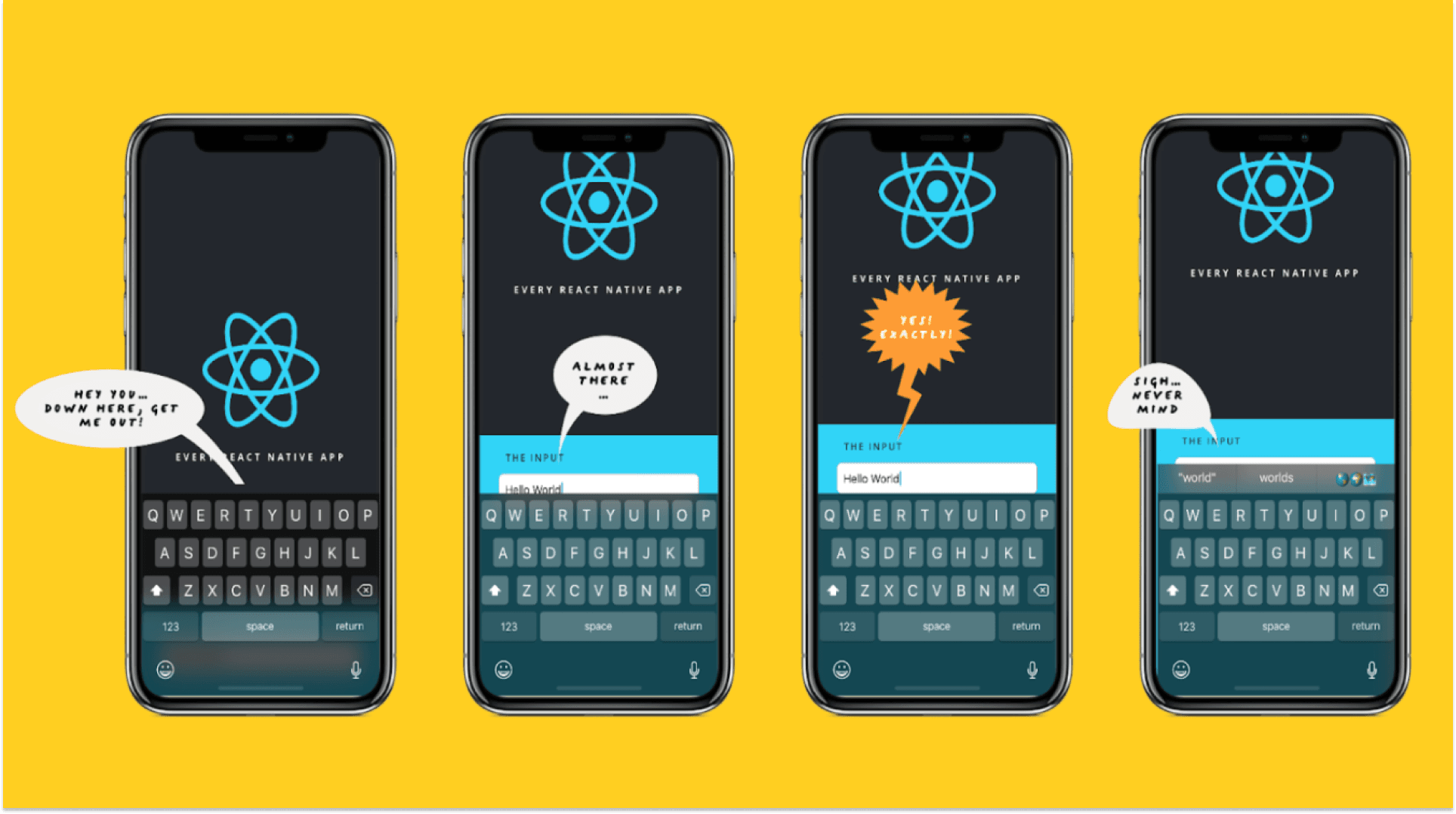
The Keyboard Bounce of Death
Your inputs jump, shift, or completely hide behind the keyboard—a frustrating experience that makes your app feel buggy and cheap.
If you are building login screens, onboarding flows, multi-step forms, or bottom-sheet-based UIs… you’ve likely seen this happen.
This article explains why this problem still occurs in modern React Native setups and provides battle-tested solutions you can confidently use in production.
Version Context
The examples and recommendations are written with current (2024–2025) React Native stacks in mind, commonly seen in production apps today:
- React Native: 0.74+
- React: 18
- Expo SDK: 50+ (New Architecture enabled)
- Hermes: Enabled (default)
- react-native-keyboard-controller: 1.20.x
- react-native-reanimated: 3.x
- react-native-screens: 3.x
- @shopify/flash-list: 1.x
These versions are provided for context rather than certification.
Exact behavior may vary depending on project configuration, cross-platform (iOS / Android), and library versions. Readers should validate keyboard behavior against their own application stack.
The Real Problem: Keyboard Handling Breaks at the Architecture Level
In modern React Native applications, keyboard issues are no longer caused by misconfigured props or missing offsets. The failure is architectural.
Classic solutions such as KeyboardAvoidingView assume a synchronous, stable layout model. That assumption no longer holds in React Native’s current execution environment, where rendering, layout, and native events operate on partially decoupled timelines.
Where the breakdown happens
1. Layout virtualization (React Native Screens ~3.30.x)
Navigation stacks aggressively detach inactive screens to reduce memory and improve performance. This means:
- The active screen’s layout is often unresolved during transitions
- Height measurements are stale at the moment keyboard events fire
- Offset calculations are applied against incomplete layout data
Keyboard avoidance logic executes correctly—but against the wrong inputs.
2. Concurrent Rendering Changes Layout Timing (RN 0.74+)
With React 18 integration and the New Architecture, React Native now supports concurrent rendering. Unlike legacy synchronous rendering, concurrent rendering allows work to be interruptible and scheduled across frames.
This changes long-standing assumptions about layout timing:
- Layout commits are no longer guaranteed to be synchronous.
- Native keyboard events can fire before the React tree has fully committed.
- Measurements taken during focus events may reflect intermediate layout states.
In complex screens (navigation stacks, bottom sheets, nested scroll views), this can produce visible misalignment:
- Keyboard height is computed.
- Offset is applied.
- Layout commits afterward.
- The UI shifts again.
The result appears as a “bounce,” but the underlying issue is timing desynchronization between native keyboard animations and React layout commits.
This is not a bug in React Native — it is a natural consequence of concurrent rendering’s scheduling model.
3. Android keyboard behavior is non-deterministic by design
On Android 12–14, keyboard behavior varies significantly by OEM:
- Heights are percentage-based, not pixel-stable
- Gesture navigation dynamically alters safe areas
- Floating and split keyboards introduce transient viewports
React Native receives incomplete or rapidly changing inset information, making consistent keyboard avoidance mathematically unreliable.
4. Nested, stateful scroll containers amplify the problem
Most production forms are embedded inside:
- Bottom sheets
- Modals
- Tab navigators
- Collapsible or animated headers
These containers continuously mutate their layout constraints. Auto-scroll and focus calculations depend on deterministic container heights—conditions that no longer exist in deeply composed UI trees.
All this means classic keyboard handling methods break on multi-layered screens.
Example Problem Scenario (What Actually Happens)
You have a complex screen with a header, multi-section form inputs, a bottom CTA, all inside a ScrollView and wrapped inside a navigation stack.
When the user taps the last input:
- The input jumps upward suddenly, OR
- Gets partially hidden, OR
- ScrollView auto-scrolls too late, OR
- The keyboard overlaps your crucial bottom CTA button.
This is the reality of real-world apps, especially those built on the modern Expo/new architecture.
The Modern Solution Stack (Production-Proven)
These are the modern, recommended approaches that actually fix the issue in today's React Native architecture.
Solution 1 — Native Keyboard Synchronization with KeyboardProvider (react-native-keyboard-controller 1.20.x)
Modern React Native apps fail at keyboard handling not because of incorrect offsets or missing props, but because keyboard animations and layout updates are not synchronized at the native level.
react-native-keyboard-controller addresses this root cause by coordinating keyboard state, animation timing, and layout updates directly in native code.
Recommended Integration: Root-Level KeyboardProvider
The primary integration point is KeyboardProvider, which enables native keyboard synchronization across the entire application.
import { KeyboardProvider } from "react-native-keyboard-controller";
export default function App() {
  return (
    <KeyboardProvider>
      <RootNavigator />
    </KeyboardProvider>
  );
}
This enables native keyboard coordination for the entire app.
Scoped Keyboard Handling with KeyboardControllerView
KeyboardControllerView is an internal building block used by KeyboardProvider.
It should only be used when keyboard coordination must be explicitly scoped to a specific layout subtree.
Typical use cases include:
- Forms inside modals or bottom sheets
- Screens where only a portion of the UI should respond to keyboard movement
- Preventing unnecessary re-layout of non-interactive UI
import { KeyboardControllerView } from "react-native-keyboard-controller";
export default function FormScreen() {
  return (
    <KeyboardControllerView style={{ flex: 1 }}>
      <YourFormContent />
    </KeyboardControllerView>
  );
}
Why is it better
- Computes keyboard height precisely
- Works flawlessly with bottom sheets, tabs, and modals.
- Better on Android 12–14
- No layout jumps
- Supports concurrent rendering
Runtime Control with useKeyboardController
useKeyboardController is a hook that gives access to the state of the react-native-keyboard-controller library. It returns two values:
- enabled - a boolean value which indicates whether the library is enabled in the app;
- setEnabled - a function that changes the state of the enabled property.
import { useKeyboardController } from "react-native-keyboard-controller";
const { enabled, setEnabled } = useKeyboardController();
setEnabled(false);
This hook is used only to enable or disable the native keyboard controller—primarily for gradual Android integration or fallback to adjustResize behavior when required.
Solution 2 — Native-Friendly Scroll Containers (Reanimated 3.10+, FlashList 1.7.x)
Keyboard issues on complex screens often occur when scroll position and keyboard movement are driven by JavaScript.
This causes delayed measurements and visible layout jumps during focus transitions.
To remove JavaScript from the critical layout path, use scroll containers that integrate cleanly with native animation timing:
- Animated.ScrollView (Reanimated) for small, controlled layouts
- FlashList for long, dynamic, or virtualized content
Both integrate better with native-driven keyboard animations.
Reanimated ScrollView Example:
<Animated.ScrollView
  keyboardShouldPersistTaps="handled"
  contentContainerStyle={{ paddingBottom: keyboardHeight }}
>
{children}
</Animated.ScrollView>
FlashList Example:
import { FlashList } from "@shopify/flash-list";
<FlashList
  data={data}
  estimatedItemSize={80}
  keyboardShouldPersistTaps="handled"
  contentContainerStyle={{
    paddingBottom: keyboardHeight,
  }}
  renderItem={renderItem}
/>
Solution 3 — If You Use Bottom Sheets (Reanimated / Gorhom)
Bottom sheets introduce an additional animated layer that can conflict with keyboard transitions and scrolling.
Without careful configuration, this often results in keyboard bounce, input focus jumps, or unstable drag behavior.
Bottom Sheet Gesture Configuration
enableContentPanningGesture={false}Disable content panning only when:
- The bottom sheet contains multiple text inputs
- Nested scroll views compete with drag gestures
- Keyboard interaction feels jumpy or unstable
Android Keyboard Mode
android_keyboardInputMode="adjustResize"Use this only as a fallback when relying on the default Android window resizing behavior.
Forcing adjustResize can reintroduce layout jumps if combined with native keyboard synchronization.
Solution 4 — Use useWindowDimensions() Instead of Static Screen Height
Keyboard and screen size changes often break layouts that rely on static dimensions:
const height = Dimensions.get('window').height;The problem:
- Dimensions.get('window') is static
- It does not update when the keyboard appears, the screen rotates, or the device enters split-screen
- Any layout based on this value may be clipped, overlapped by the keyboard, or cause scroll jumps
Use this:
const { height } = useWindowDimensions();It adapts when the keyboard reduces available height dynamically.
Solution 5 — Use KeyboardAwareScrollView for Automatic Input Scrolling
When your form contains multiple inputs, simply preventing layout jumps is often not enough.
You also want the focused input to scroll into view automatically.
react-native-keyboard-aware-scroll-view handles this efficiently.
import { KeyboardAwareScrollView } from 'react-native-keyboard-aware-scroll-view';
export default function FormScreen() {
return (
<KeyboardAwareScrollView
      style={{ flex: 1 }}
      contentContainerStyle={{ padding: 16 }}
      keyboardShouldPersistTaps="handled"
      enableOnAndroid={true}   // Ensures Android scroll works properly
      extraScrollHeight={20}   // Optional padding above the keyboard
    >
      <YourFormContent />
    </KeyboardAwareScrollView>
  );
}
Why This Works
- Automatically scrolls the focused input above the keyboard
- Works with nested forms and long lists
- Supports Android and iOS, including safe handling of bottom tabs
- Integrates well with native keyboard controllers (like react-native-keyboard-controller)
- Minimal setup — reduces boilerplate scroll logic
Practical Real-World Implementation (Full Code Example)
This is a rock-solid implementation used in production onboarding flows:
import { KeyboardAwareScrollView, useKeyboardState } from "react-native-keyboard-controller";
import { TextInput, View } from "react-native";

export default function RegistrationForm() {
const keyboardHeight = useKeyboardState((state) => state.height);
return (
    <KeyboardAwareScrollView
      contentContainerStyle={{ paddingBottom: keyboardHeight + 20 }}
      bottomOffset={50} // optional offset for bottom CTA buttons
      keyboardShouldPersistTaps="handled"
    >
      <InputField />
      <InputField />
      <InputField />
    </KeyboardAwareScrollView>
  );
}
function InputField() {
  return (
    <TextInput
      style={{
        borderWidth: 1,
        marginVertical: 12,
        padding: 12,
        borderRadius: 8,
      }}
    />
  );
}
This handles:
- iOS + Android
- Gesture navigation
- Variable keyboards
- Concurrent rendering
- ScrollView-based layouts
- Bottom CTA buttons
ALL without layout jumps.
Debugging Checklist (What To Test Before Shipping)
- Test split-screen mode on Android
Your input may be hidden due to reduced viewport height.
- Test floating keyboard mode
TikTok/Samsung keyboards break height assumptions.
- Test device rotation
Keyboard height changes drastically in landscape.
- Test inside modals & bottom sheets
Most keyboard bugs occur inside nested containers.
- Measure layout flicker using this:
adb logcat | grep "keyboard"
adb logcat → streams real-time Android system logs
grep “keyboard” → filters logs related to keyboard / IME events
What you will see
Logs like:
- Keyboard show/hide events
- IME height changes
- Window resize calls
- Focus changes
Why this matters
If you see:
- Multiple keyboard show/hide events for one input focus
- Rapid resize → unresize cycles
- Keyboard height changing more than once
That’s the root cause of flicker/bounce.
or for iOS:
xcrun simctl spawn booted log stream --level debug | grep "keyboard"What this does
- Streams iOS system logs from the Simulator
- Filters keyboard-related notifications
What you’ll see
- UIKeyboardWillShow
- UIKeyboardDidShow
- Frame and height updates
- Animation duration mismatches
Why this matters
If:
- WillShow fires multiple times
- Keyboard frame changes mid-animation
Your layout is reacting out of sync with the keyboard.
Conclusion: Keyboard Handling in Modern React Native Requires a New Approach
The assumptions behind KeyboardAvoidingView no longer hold up for modern React Native applications that rely on:
- Concurrent rendering
- react-native-screens
- Bottom sheets and modals
- The new architecture and Hermes
- Deeply layered, animated UIs
In these environments, keyboard behavior becomes a cross-cutting concern, involving layout measurement, animation timing, gesture handling, and native window resizing.
To build reliable, input-heavy screens, production apps increasingly rely on a combination of:
- Native keyboard synchronization (react-native-keyboard-controller)
- Reanimated or FlashList-based scrolling
- Dynamic keyboard height handling
- Scroll-to-focused-input utilities
- Intentional layout stabilization techniques
This layered approach reflects how high-quality production apps—including financial, social, and AI-driven products—handle keyboard interactions today.