
Introduction
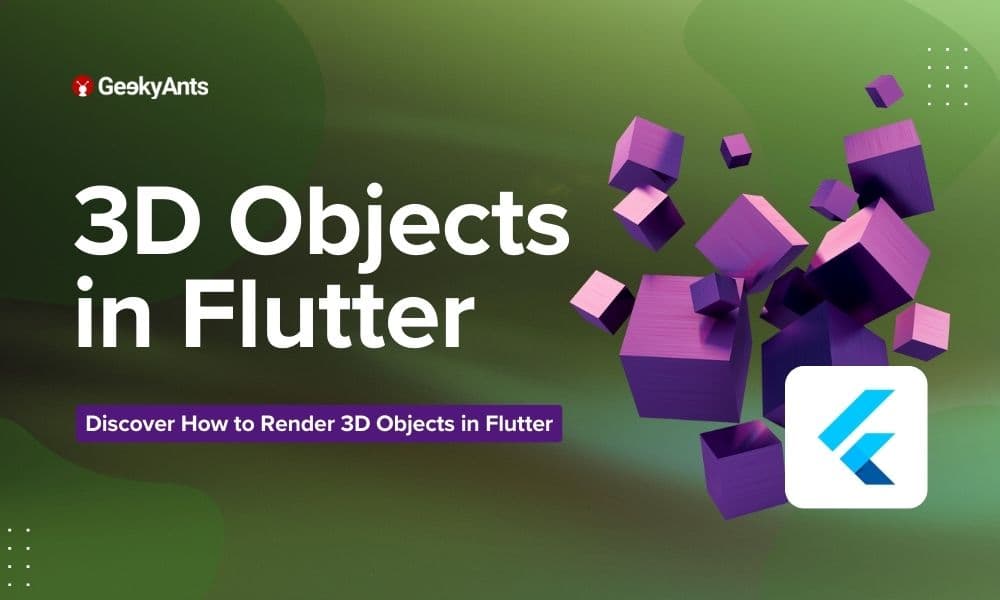
In the vibrant world of web development, Three.js has long been a household name, empowering developers to craft captivating 3D experiences seamlessly. However, when it comes to Flutter, the 3D terrain has been somewhat little uncharted. Flutter enthusiasts may have explored packages allowing the display of glTF models, yet the freedom to forge deeply interactive 3D realms remained limited.
Flutter, being the powerhouse for cross-platform app development, lacked an official 3D library or engine to enable developers to sculpt and play with 3D elements with finesse. So we will go with a pub.dev package that brings the magic of Three.js to Flutter. Meet three_dart, an unofficial Dart version inspired by Three.js, based on flutter_gl.
Crafting a Flutter Solar System with three_dart
Let's cut through the cosmic clutter and launch ourselves straight into the fun of three_dart! Hold onto your space helmets – we are about to create a universe of laughter and learning! 🚀
So, we will create a simple solar system with three_dart to get some basic hands-on experience in creating 3d renders with three_dart.
Note- Unfortunately, three_dart forgot to pack its official documentation for our adventure. Not to worry, though – think of three_dart as the fun cousin of Three.js, sharing a strikingly similar syntax. So, while three_dart might be shy on docs, you can take reference from the three.js official documentation for any issue you face.
Step 1: Adding the Dependencies
Run the following code to add the dependencies:
three_dart: ^0.0.16
  flutter_gl: ^0.0.21
  three_dart_jsm: ^0.0.10
Step 2: Understanding and Setting up the Essential Functions and Flow Before Rendering Actual Things
Though the approach to creating the Solar System is very simple, we need to understand the boilerplate code before diving into that.
Initializing Screen Size and Pixel Ratio
Before diving into the 3D world, we need to capture the screen size and device pixel ratio. The initSize function retrieves this information using Flutter's MediaQuery. It ensures a responsive 3D scene by adapting to the device's dimensions.
initSize(BuildContext context) {
  if (screenSize != null) {
    return;
  }
  final mqd = MediaQuery.of(context);
  screenSize = mqd.size;
  dpr = mqd.devicePixelRatio;
  initPlatformState();
}
Initializing Platform State
The initPlatformState function sets up the FlutterGlPlugin, a bridge for integrating Three.js with Flutter. It initializes the WebGL context and prepares the environment for our 3D scene.
Future<void> initPlatformState() async {
  width = screenSize!.width;
  height = screenSize!.height;
  three3dRender = FlutterGlPlugin();
  Map<String, dynamic> options = {
    "antialias": true,
    "alpha": false,
    "width": width.toInt(),
    "height": height.toInt(),
    "dpr": dpr
  };
  await three3dRender.initialize(options: options);
  setState(() {});
  Future.delayed(const Duration(milliseconds: 100), () async {
    await three3dRender.prepareContext();
    initScene();
  });
}
Initializing the 3D Scene and the Three.js Renderer
In the initScene function, we set up the Three.js renderer and the 3D scene. This involves configuring options, such as antialiasing and canvas dimensions, and preparing the rendering target. The initRenderer function initializes the Three.js renderer, specifying width, height, and WebGL context options. It also sets up the rendering target, crucial for off-screen rendering in non-web platforms.
initScene() {
  initRenderer();
  initPage();
}
initRenderer() {
  Map<String, dynamic> options = {
    "width": width,
    "height": height,
    "gl": three3dRender.gl,
    "antialias": true,
    "canvas": three3dRender.element
  };
  renderer = three.WebGLRenderer(options);
  renderer!.setPixelRatio(dpr);
  renderer!.setSize(width, height, false);
  renderer!.shadowMap.enabled = false;
  if (!kIsWeb) {
    var pars = three.WebGLRenderTargetOptions({
      "minFilter": three.LinearFilter,
      "magFilter": three.LinearFilter,
      "format": three.RGBAFormat
    });
    renderTarget = three.WebGLRenderTarget(
        (width * dpr).toInt(), (height * dpr).toInt(), pars);
    renderTarget.samples = 4;
    renderer!.setRenderTarget(renderTarget);
    sourceTexture = renderer!.getRenderTargetGLTexture(renderTarget);
  }
}
Step 3: Building the UI with Three.js Integration
The _build function creates a Flutter widget that integrates with Three.js using the DomLikeListenable and HtmlElementView (for web) or Texture (for other platforms). This ensures the seamless incorporation of the 3D scene into the Flutter app.
Widget _build(BuildContext context) {
  return three_jsm.DomLikeListenable(
    key: _globalKey,
    builder: (BuildContext context) {
      return Container(
        width: width,
        height: height,
        color: Colors.black,
        child: Builder(builder: (BuildContext context) {
          if (kIsWeb) {
            return three3dRender.isInitialized
                ? HtmlElementView(
                    viewType: three3dRender.textureId!.toString())
                : Container();
          } else {
            return three3dRender.isInitialized
                ? Texture(textureId: three3dRender.textureId!)
                : Container();
          }
        }),
      );
    },
  );
}
Pfffff….. it is lots of boiler-plate code, but it is not as complex as it looks.
Step 4: Setting up the scene and camera
Now, all the scene-related code will go inside initPage().
- PerspectiveCamera Initialization
camera = three.PerspectiveCamera(45, width / height, 0.1, 1000);The three.PerspectiveCamera is a class provided by the Three.js library for creating a camera that simulates a perspective projection. A perspective camera mimics how the human eye sees the world in three dimensions.
Parameters
- 45: The field of view (FOV) in degrees. This value represents how much of the scene is visible. A higher FOV means a wider view.
- Width/height: The aspect ratio of the camera. It is typically set to the width divided by the height of the viewport, ensuring that the scene looks natural on screens with different aspect ratios.
- 0.1: The near clipping plane. Objects closer to the camera than this value will not be rendered. It prevents objects from being too close to the camera and causing visual artifacts.
- 1000: The far clipping plane. Objects farther from the camera than this value will not be rendered. It helps improve performance by excluding distant objects that are not visible.
- Setting Camera Position
camera.position.z = 300;This sets the position of the camera along the z-axis in the 3D space. Positive values move the camera backward, away from the scene, and negative values move it forward, towards the scene.
Step 5: Rendering Objects
Finally, as all the bases have been laid out, it is time to render all the objects in the scene.
Let us first add our solar system's energy source to the scene.
late three.Mesh sun;
late three.Mesh mercury;

initPage(){
…
 sun = createSphere(12, 0xFFD307); // Sun
 mercury = createSphere(1, 0xBFBFBF); // Mercury
  // Set initial positions
  sun.position.set(0, 0, 0);
  mercury.position.set(25, 0, 0);
   // Add objects to the scene
    scene.add(sun);
    scene.add(mercury);
    // Lights
    var ambientLight = three.AmbientLight(0x404040);
    scene.add(ambientLight);
    var pointLight = three.PointLight(0xffffff, 0.5);
    pointLight.position.set(0, 0, 0);
    scene.add(pointLight);
    var sunLight = three.PointLight(0xffffff, 0.7);
    sunLight.position.set(0, 0, 100);
    scene.add(sunLight);
…
}

createSphere(double radius, int color) {
    var geometry = three.SphereGeometry(radius, 50, 50);
    var material = three.MeshPhongMaterial({"color": color});
    return three.Mesh(geometry, material);
  }
Similarly, add other planets with different sizes and colors.
Step 6: Animating the 3d Scene
As we now have all the physical things in this universe in motion, how can our solar system be stable?
We will make the planets rotate around the sun.
animate() {
    if (!mounted || disposed) {
      return;
    }

 // Rotate the entire solar system
    sun.rotation.y += 0.001;

// Move planets in their orbital paths with reduced speeds
    mercury.position.x =
        25 * Math.cos(0.005 * DateTime.now().millisecondsSinceEpoch);
    mercury.position.z =
        25 * Math.sin(0.005 * DateTime.now().millisecondsSinceEpoch);
    render();
    Future.delayed(const Duration(milliseconds: 40), () {
      animate();
    });
  }
Something is still missing. Yes you guessed it right, it’s our twinkle-twinkle big stars.
Step 7: Rendering the Star Field
void addStarfield() {
    final random = Random();
    for (var i = 0; i < 800; i++) {
      var x = ((random.nextDouble() - 0.5) * 500);
      var y = ((random.nextDouble() - 0.5) * 500);
      var z = ((random.nextDouble() - 0.5) * 500);
      var star = createSphere(0.4, 0xFFFFFF);
      star.position.set(x, y, z);
      scene.add(star);
    }
  }
Tadaaaa our creation is ready to shake the universe, and you can find the complete source code here: https://github.com/SahilSharma2710/three_dart_demo/tree/main/three_dart_demo
Summing Up
In the realm of unexplored 3D development within the Flutter framework, we have embraced three_dart, seamlessly integrating the intricate magic of Three.js into our application. Our endeavor involved crafting a Flutter Solar System, overcoming the complexities of code to establish a refined 3D landscape featuring a responsive UI, vibrant lighting, and elegant animations. Despite the limited documentation, three_dart showcased its potency by leveraging the syntax of three.js in our meticulous cosmic exploration.