

Data visualization plays a key role in modern mobile apps - from analytics dashboards to performance summaries. Well-designed graphs make complex data easy to understand at a glance. However, building responsive and high-performance graphs in React Native can be challenging.
In this blog, we will walk through how we approached building responsive and performant graphs in React Native - the challenges we faced and the strategies we adopted.
The Challenges We Faced with Graph Implementations:
When working with popular graph libraries in React Native, several practical issues often arise, particularly around responsiveness, alignment, and performance. Here are a few of the most common challenges we encountered:
1. Y-Axis Scrolling Issue
When making the graph horizontally scrollable (for large datasets), the Y-axis scrolled along with the graph content, making it difficult to keep the labels visible while navigating through the data.
2. Axis Alignment Issues
To fix the above issue, we attempted to create two separate graphs - one for the Y-axis and another for the main scrollable X-axis. While this approach initially worked, it introduced alignment inconsistencies between the two graphs, especially when the chart data or layout was updated dynamically.
3. Performance and Crashes on iOS
For large datasets, especially in bar charts or grouped bar charts, the app would occasionally crash on iOS. The crash logs pointed to Metal texture creation failures, meaning the graphics rendering system could not allocate textures large enough for the entire dataset.
What We Require from our Charting Solution
After evaluating multiple libraries and approaches, it became clear that our ideal solution had to:
- Handle large datasets gracefully without crashes.
- Support independent Y-axis rendering for better user readability.
- Offer responsiveness across screen sizes.
- Be lightweight and performant, minimizing bundle size and build times.
- Stay easy to integrate.
The Solution:
After exploring several options, we found that combining a lightweight, flexible charting library like react-native-gifted-charts with custom dynamic logic gave us the right balance between performance, maintainability, and control.
Some of the features that stood out about the library were:
- Built-in support for scrollable charts with fixed axes
- Smooth animations and transitions
- Highly customizable props for colors, labels, gradients, and legends
- Optimized rendering that prevents crashes even with large data sets
- Lightweight and efficient, which reduced the app’s bundle size, improved runtime performance, and significantly shortened the time required to create production builds.
1. Installation
To get started, let’s install the necessary dependencies that will enable chart rendering and responsive scaling in our React Native project:
- react-native-gifted-charts (the charting library)
- react-native-svg (for rendering graphics)
- react-native-linear-gradient (or expo-linear-gradient if in an Expo project)
- react-native-responsive-screen for dynamic sizing across devices (recommended).
Using React Native CLI:
npm install react-native-gifted-charts react-native-svg react-native-linear-gradient react-native-responsive-screenUsing Expo (recommended):
npx expo install react-native-gifted-charts react-native-svg expo-linear-gradient react-native-responsive-screenNote: Make sure these dependencies are linked (in non-Expo projects) so the native modules work correctly. (Autolinking should handle it in recent React Native versions.)
2. The final optimized implementation:
Let’s now walk through the final optimized setup step-by-step, starting from the base configuration and moving into the dynamic enhancements we added to make the graphs stable, scalable, and production-ready.
Setting Up the Base Chart
The react-native-gifted-charts library provides a solid and efficient starting point for creating bar graphs. It handles much of the heavy lifting for graph rendering, animations, and performance optimizations internally.
Here’s a basic setup we used to render a simple bar chart:
import { BarChart } from "react-native-gifted-charts";
import { widthPercentageToDP as wp } from "react-native-responsive-screen";
          <BarChart
             data={barData}
             barWidth={wp("5.5%")}
             frontColor={"#6495ED"}
             height={wp("38%")}
             width={width - yAxisWidth - 64}
             spacing={isTablet ? 70 : 65}
             dashGap={0}
             xAxisLabelTextStyle={{
               textAlign: "center",
               fontSize: isTablet ? 14 : 10,
               color: "#737373",
             }}
             formatYLabel={(value) => Math.round(Number(value)).toString()}
             noOfSections={chartConfig.noOfSections}
             stepValue={chartConfig.stepValue}
             maxValue={chartConfig.maxValue}
             disablePress
             yAxisLabelWidth={yAxisWidth}
             yAxisTextStyle={{
               textAlign: "center",
               fontSize: isTablet ? 14 : 10,
               color: "#737373",
             }}
             endSpacing={17}
             xAxisColor="#737373"
             yAxisColor="#737373"
           />
This base setup alone helps resolve two major pain points we previously faced:
- App crashes on iOS for large datasets: We found that react-native-gifted-charts handled large datasets smoothly without triggering the Metal texture allocation errors we previously encountered on iOS. This makes it a reliable choice for rendering dense graph data across platforms.
- Y-axis scrolling along with the chart content: The library keeps the Y-axis fixed while allowing horizontal scrolling of large datasets, which significantly improved the readability and usability of the graphs.
Key Props and Their Purpose
Before diving into custom enhancements, it’s essential to understand a few key props that form the backbone of every chart:
- barWidth
Controls the width of each bar. We used wp("5.5%") to keep it proportional to screen width, ensuring the chart looks balanced on both phones and tablets.
- height and width:
Defines the overall chart dimensions. Using percentage-based values (like height={wp("38%")}) makes the graph scale fluidly across devices.
- Spacing:
Determines the horizontal space between bars. We dynamically adjusted it using:
spacing={isTablet ? 70 : 65}
so that the chart maintains even spacing on different screen types.
- noOfSections, stepValue, and maxValue
These three props control the scaling of the Y-axis.
- noOfSections: Number of horizontal grid lines.
- stepValue: Value difference between each section.
- maxValue: The highest Y-axis value (We multiply the maximum value by 1.2 to add a buffer, ensuring that the tallest bar does not get cropped at the top.)
The above three values must satisfy the relation:
maxValue = noOfSections * stepValue
- formatYLabel:
A function used to format the Y-axis values. In our case, it is being used to round decimal values and ensure clean and readable labels:
formatYLabel={(value) => Math.round(Number(value)).toString()}- xAxisLabelTextStyle and yAxisTextStyle:
Controls the font size, alignment, and color of the X and Y-axis labels. We adjusted font sizes for tablets and phones for better legibility.
- frontColor, xAxisColor, and yAxisColor:
- frontColor: Sets the color of the bars (we matched this with the app’s theme).
- xAxisColor & yAxisColor: Defines the axis line colors for a subtle and professional look.
- dashGap:
Defines gaps between dashes in grid lines. We have set it to 0 to show solid lines behind the graphs.
Making the Charts Truly Dynamic
Now that we have the base graph working, let’s move on to the custom enhancements we added to improve accuracy, responsiveness, and flexibility.
Dynamic Y-Axis Width for Large Values
One of the first issues we encountered was truncated Y-axis labels when large numerical values were displayed. To address this, we calculated the Y-axis width dynamically based on the number of digits in the largest value, as shown by the code below:
const yAxisWidth = useMemo(() => {
   if (barData.length === 0) return wp("5%");
   //Multiplying 1.2 here to make sure the bar with max value doesn't get cut off from the top
   const maxValue = Math.max(...barData.map((item) => item.value)) * 1.2;
   // Calculating width based on number of digits
   const digitCount = Math.floor(Math.log10(maxValue)) + 1;
   //Calculating new y-axis width by doing the following: Base width + additional          width for each digit
   const baseWidth = wp("5%");
   const additionalWidth = (digitCount - 1) * wp("1.25%");
   return Math.max(wp("5%"), baseWidth + additionalWidth);
 }, [barData]);
This approach provides the following benefits:
- Prevents label truncation: The Y-axis automatically adjusts to fit larger values.
- Maintains proper alignment: The bars and axes remain visually consistent regardless of dataset size.
- Improves responsiveness: Works seamlessly across devices with different screen sizes.
Properly Calculating Chart Sections and Scaling
For the graph to render correctly, the three properties (noOfSections, stepValue, and maxValue) must always follow the mathematical relationship given below:
maxValue = noOfSections * stepValue
If this relationship is not maintained, for instance, when only one of the three values is adjusted manually, the chart may render incorrectly or not at all.
Note: Additionally, the documentation advises reloading the app whenever these values or related props (height, stepHeight, etc.) are modified, as the new configurations are sometimes applied only after a full reload.
Here’s how we handled these configurations dynamically to ensure smooth scaling across any dataset:
const chartConfig = useMemo(() => {
   const rawMax = Math.max(...barData.map((b) => b.value)) || 1;
   const bufferedMax = rawMax * 1.2;
   const noOfSections = 5;
   const stepValue = Math.ceil(bufferedMax / noOfSections / 5) * 5;
   const maxValue = stepValue * noOfSections;
   return {
     stepValue,
     maxValue,
     rawMax,
     bufferedMax,
     noOfSections,
   };
 }, [barData]);
Structuring the Data for Flexibility
In react-native-gifted-charts, the data prop accepts an array of objects, each representing a single bar or data point. Structuring our data in the way below ensures full control over labels, colors, and layout.
const { width } = Dimensions.get("window");
const isTablet = useMemo(() => width >= 678, []);
const barData = [
   {
     value: 150,
     label: "KA-51-AF-4155",
     topLabelComponent: () => (
       <Text
         style={[
           styles.topLabel,
           isTablet ? styles.topLabelTablet : styles.topLabelMobile,
         ]}
       >
         150
       </Text>
     ),
   },
   // Additional data points...
 ];
Styling the Top Labels:
topLabel: {
   marginBottom: 4,
   color: "black",
 },
 topLabelTablet: {
   fontSize: 14,
 },
 topLabelMobile: {
   fontSize: 10,
 },
Property breakdown:
- value: Defines the height of the bar (e.g., 150).
- label: Sets the X-axis label (e.g., "KA-51-AF-4155").
- topLabelComponent – A Custom React component for displaying value labels above each bar.
This approach ensures consistent styling and responsiveness while offering full customization for each data point.
The End Result
By combining the base setup from react-native-gifted-charts with the above enhancements, we achieved:
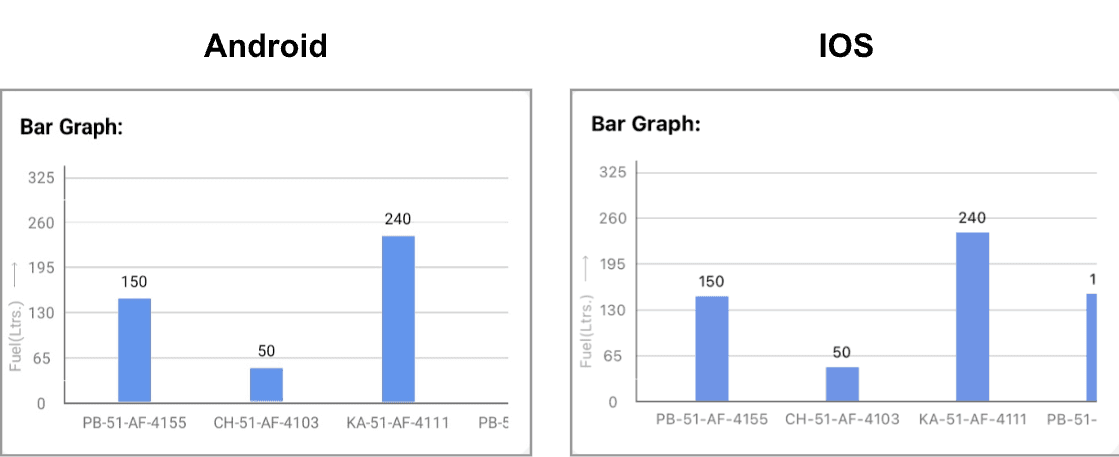
- Smooth, crash-free performance on both IOS and Android, even with large datasets.
- A fixed, properly aligned Y-axis for improved readability.
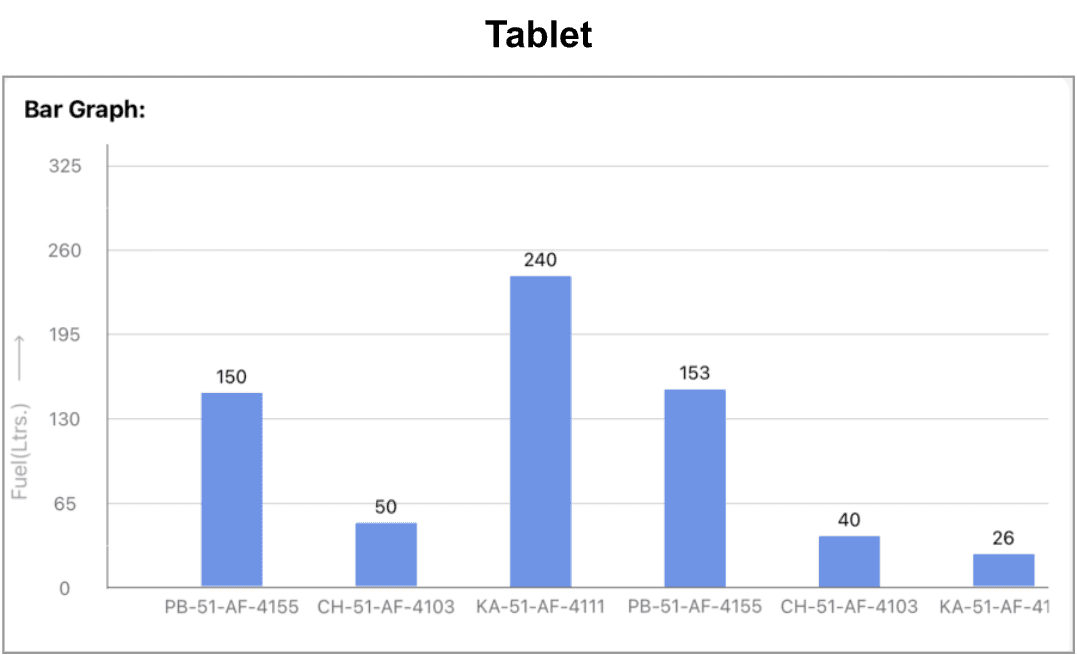
- Dynamic scaling and sizing that adapts to any screen size or dataset.
- Clean, customizable visuals ready for production use
Our Graph in Action:
To demonstrate the results of our implementation, here’s how the charts render across different devices:
3. Advanced: Creating Grouped Bar Graphs
In many scenarios, we need to display multiple metrics side-by-side for the same category, such as current vs expected values. The react-native-gifted-charts library makes it straightforward to implement grouped bar charts by structuring the data prop appropriately and customizing the top labels.
Data Structure for Grouped Bars:
To implement a grouped bar chart, most of the setup remains the same as a standard bar chart. However, there are a few additional considerations for handling multiple bars per category:
- spacing: Adds space between bars within a group to clearly separate metrics like current vs expected values.
- topLabelComponent: For grouped bars, it’s important to dynamically render the label above the taller bar in each group.
- frontColor: Can be used to differentiate bars within the same group
Example snippet for grouped data:
const allDummyMileageData = [
   {
     value: 15, // current_mileage
     spacing: 2,
     frontColor: "#0047AB",
   },
   {
     value: 17, // expected_mileage
     frontColor: "#A7C7E7",
     label: "PB-12-CL-8877",
     topLabelComponent: () => (
       <BarTopLabel isLow={true} labelText="15/17" isTablet={isTablet} />
     ),
   },
   // Additional data points...
 ];
Dynamic Top Labels
For grouped bars, top labels must be carefully positioned to avoid overlapping. We created a reusable component that automatically adjusts the label width and position based on the taller bar in the group.
const BarTopLabel = ({
   isLow,
   labelText,
   isTablet,
 }: {
   isLow: boolean;
   labelText: string;
   isTablet: boolean;
 }) => {
   const labelLength = labelText.length;
   const approxCharWidth = isTablet ? 8 : 6;
   const padding = 10;
   const dynamicWidth = labelLength * approxCharWidth + padding;


   return (
     <View
       style={{
         justifyContent: "center",
         alignItems: "center",
         height: 30,
         width: dynamicWidth,
       }}
     >
       <Text
         style={{
           color: isLow ? "#CD1911" : "#262626",
           fontSize: isTablet ? 14 : 10,
         }}
       >
         {labelText}
       </Text>
     </View>
   );
 };
Key Points:
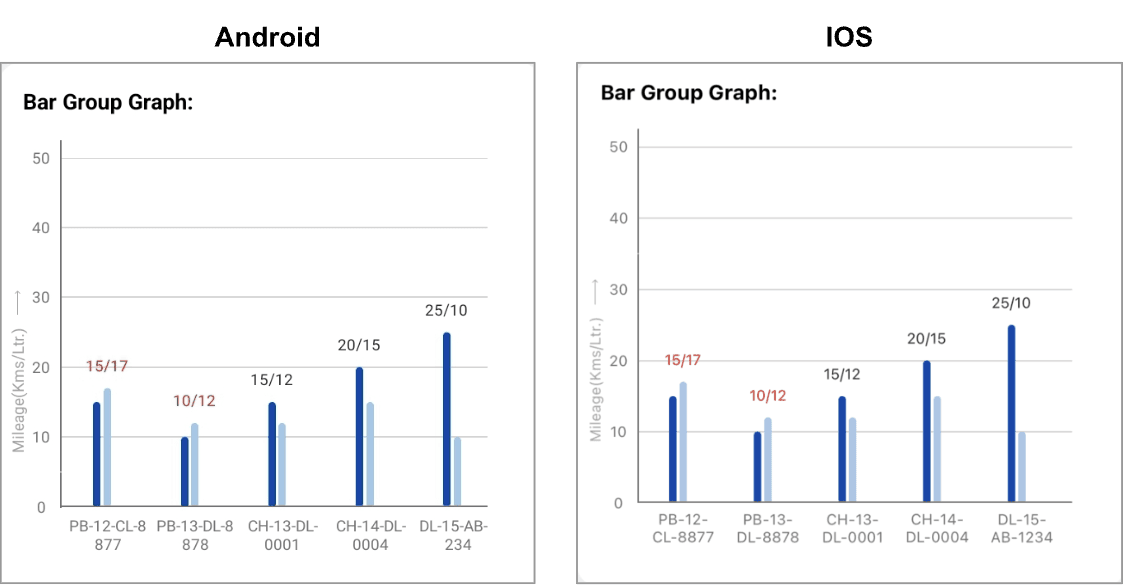
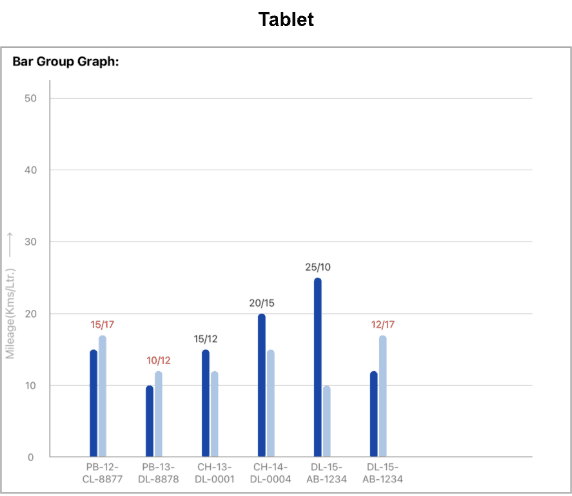
- Dynamic Positioning: The top label is placed above the bar with the larger value in the group, ensuring it doesn’t overlap or look misaligned.
- Dynamic Width Calculation: By calculating the width of the label based on the text length and screen type (tablet vs mobile), we prevent clipping of labels.
- Conditional Styling: Using the isLow flag, we can apply different colors to indicate low vs high values, improving readability and visual cues.
Our Grouped Bar Graph in Action:
Final Thoughts
Building responsive and performant graphs in React Native is about more than just aesthetics; it’s about ensuring usability, speed, and adaptability across devices. The react-native-gifted-charts library offers a strong foundation, and with a few tailored enhancements like adaptive layouts and precise alignment, we can create production-ready graphs that deliver a seamless experience across Android, IOS, and tablets.