
In this post, I'll show you how to install Traefik Proxy — the cloud native application proxy in our Docker Compose file and utilize it in our architecture with a sample service container. Traefik Proxy was discussed in my previous post — How much do you know "Traefik" proxy?
As a baseline, I'm assuming you're familiar with Docker and Docker Compose files.
Let's get started —
Docker Compose
- Add the following content to your
docker-compose.ymlfile
version: '3.6'

services:
  traefik:
    image: "traefik:v2.9"
    container_name: "traefik"
    command:
      - "--api.insecure=true"
      - "--providers.docker=true"
      - "--providers.docker.exposedbydefault=false"
      - "--log.level=debug"
      - "--entrypoints.web.address=:1337"
    ports:
      - "1337:1337"
      - "9090:8080"
    volumes:
      - "/var/run/docker.sock:/var/run/docker.sock:ro"

  whoami:
    image: "traefik/whoami"
    container_name: "iamfoo"
    command: "--port 80 --name iamfoo"
    labels:
      - "traefik.enable=true"
      - "traefik.http.routers.whoami.entrypoints=web"
      - "traefik.http.routers.whoami.rule=(Host(`localhost`) && PathPrefix(`/whoami`))"
Details (of the content mentioned in Docker Compose file)
- Replace
localhostwith your own domain or sub-domain in service containerwhoami - Run
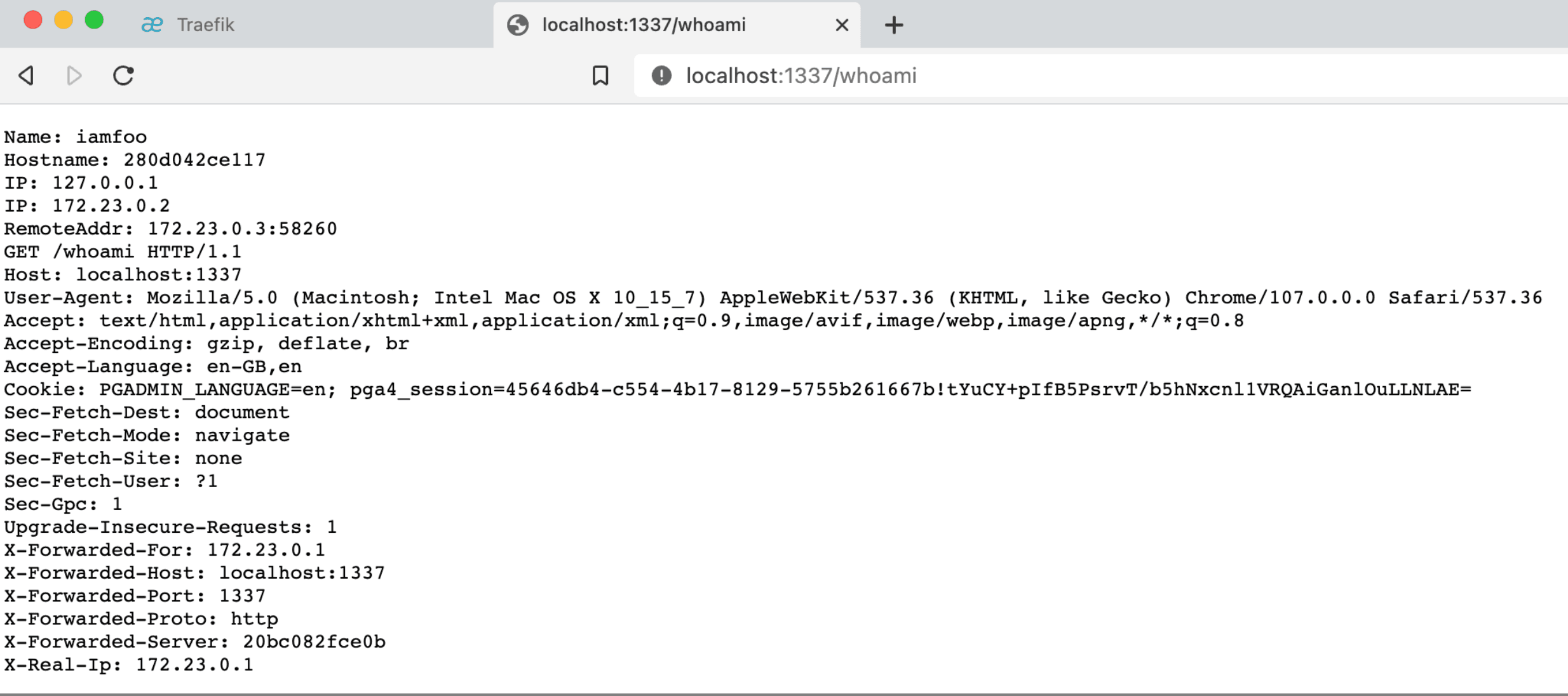
docker-compose.ymlfile by using the commanddocker-compose up -d - Your server should be up and running. Visiting
http://localhost:1337/whoami, will show you all request headers - I'm using Traefik's whoami service as an example, it is a tiny Go server that prints os information and HTTP request to output
command:
  - "--entrypoints.web.address=:1337"

ports:
  - "1337:1337"
- The above mini snapshot shows how we define entry point in Traefik
- This allows us to "open and accept" HTTP traffic
command:
  - "--api.insecure=true"

ports:
  - "9090:8080"
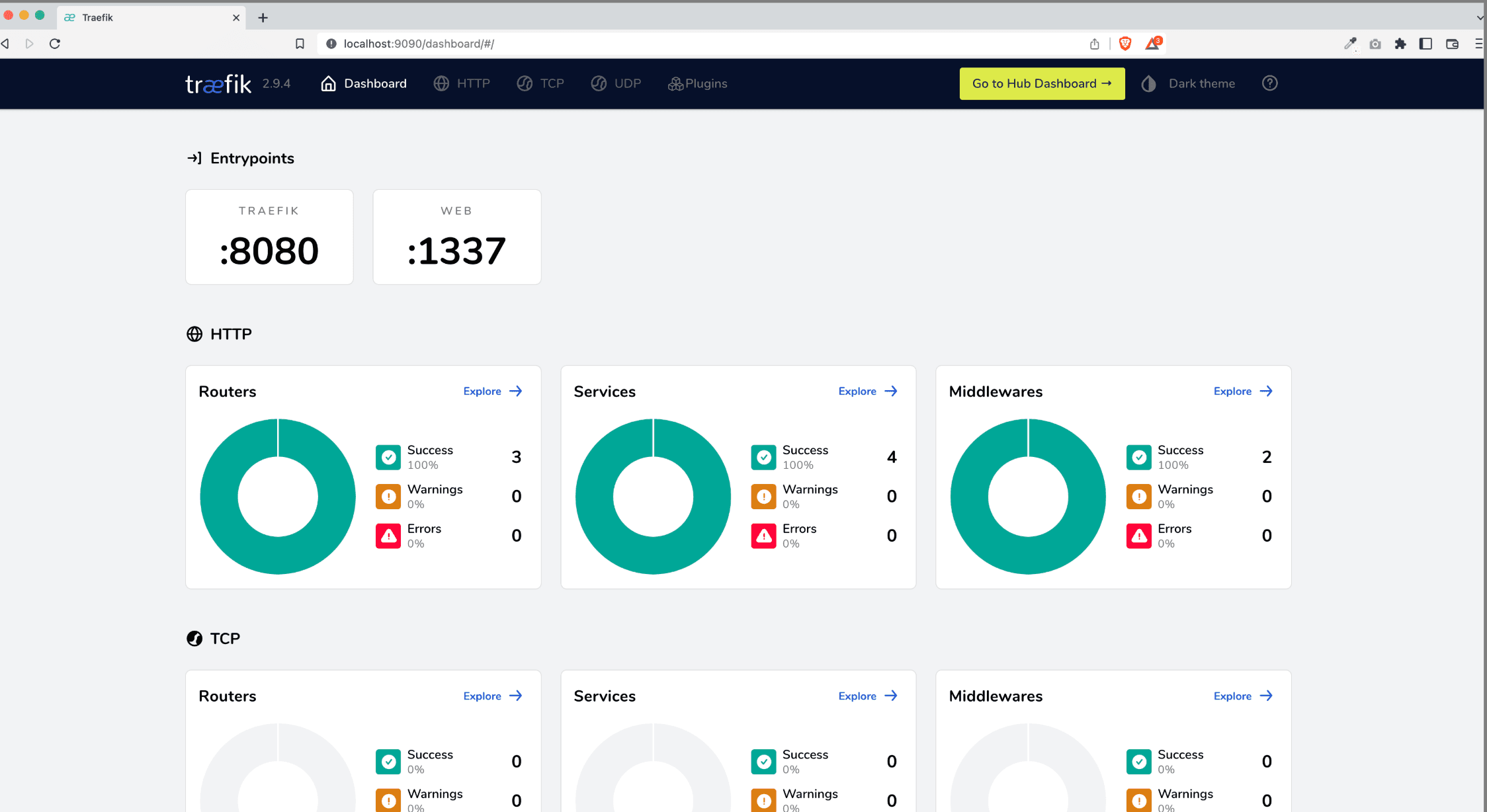
- The above mini snapshot shows how we configure & expose Traefik's API and Dashboard.
- By default, Traefik will listen on port 8080 for API requests
- This is a fully optional step; we may disable the Dashboard and secure APIs if you do not want to.
command:
  - "--log.level=debug"
- To enable and customise the log and it's level, we can use the command as mentioned above
- Accepted values, in order of severity -
DEBUG,INFO,WARN,ERROR,FATAL&PANIC
traefik:
  command:
    "--providers.docker=true"
    "--providers.docker.exposedbydefault=false"
  volumes:
    - "/var/run/docker.sock:/var/run/docker.sock:ro"

whoami:
  ...
  labels:
    - "traefik.enable=true"
    - "traefik.http.routers.whoami.entrypoints=web"
    - "traefik.http.routers.whoami.rule=(Host(`localhost`) && PathPrefix(`/whoami`))"
- To enable docker as a providers for Traefik configuration, we set the value as true against
providers.docker - If we want to enable all the service containers within the docker-compose file, we can set the value as true against
providers.docker.exposedbydefault - But, I'd recommend to not expose all service containers unless really needed
- If choose to not explicitly expose all your service containers, then you'd need to enable each container service by setting
traefik.enableas true - To allow request only from your predefined entry point, we set
traefik.http.routes.whoami.entrypointwith the name value we defined in ourtraefikservice - in our case, it is web
Screenshots
Traefik Dashboard
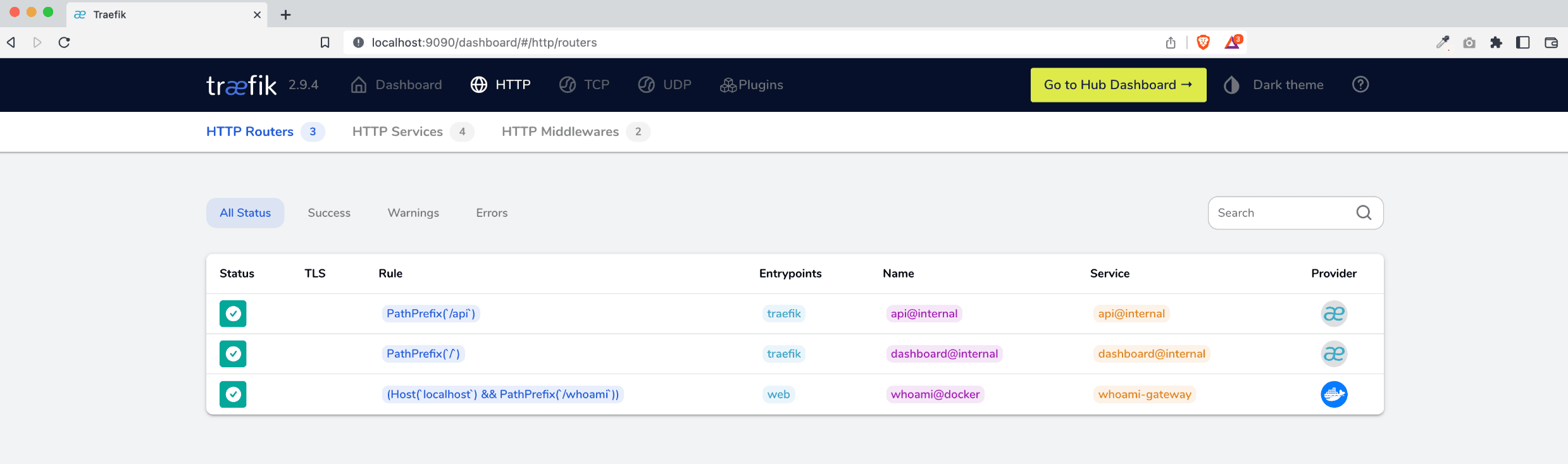
Traefik Dashboard's Routers List
Whoami Service Container
Summary
After reading this article, you will have a fundamental grasp on how to setup Traefik Proxy in your Docker Compose with a service.
And I strongly advise everyone to have the "traefik/whoami" service container ready for debugging request headers if something goes wrong.
Source: This blog is authored by Faiz Ahmed, Principal Technical Consultant at GeekyAnts. Originally published on Hashnode: Read here.