
Flutter has been around for a while now and the ecosystem has been developing at a good pace. So, when I had the task to create a live streaming demo with Flutter, it was just a matter of finding the right tools and services.
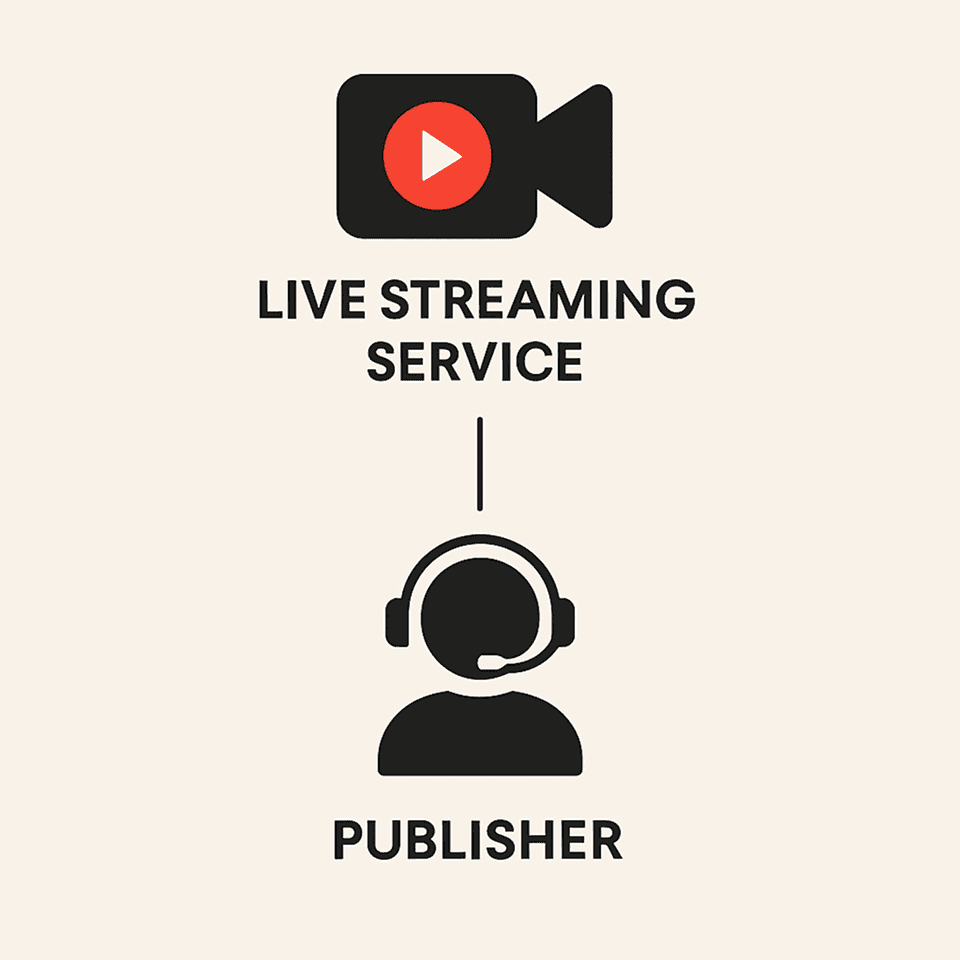
For a complete live streaming app, we need two main things:
- A live streaming service
- A publisher
Live Streaming Service: It will run on the server side and will be responsible for re-encoding and making the video stream coming from a publisher accessible to anyone on the internet who has the correct URL and credentials.
Publisher: Any device or app that sends the video stream to the live streaming service can be called a publisher. In our case, our Flutter app will act as a publisher.
Setting up live streaming service
I chose Wowza Streaming Engine to use in my demo as it is very easy to set up and you get a huge choice of supported publishers to choose from.
To set up the Wowza streaming engine on Google Cloud, just follow this step-by-step tutorial. After it is done, we can access the Engine Manager web console on http://[external-ip]:8088/enginemanager, where external-ip is the public IP address of your Google Cloud Compute Engine instance. Sign-in to the console with the username and address that you provided and you’ll be provided with a screen like this:
Congratulations, you now have a Live Streaming Server.
Now let’s create a stream.
- Go to Applications -> live. An application named
livewill already be created for you if you followed the instructions in the setup options correctly. - Click on
Source Securityin the menu on your left & disable all security on RTMP sources. We are doing this for the sake of ease. You can play around with different security settings later. - Now click on
Sources(Live)in the same menu. You will be presented with a screen like this:
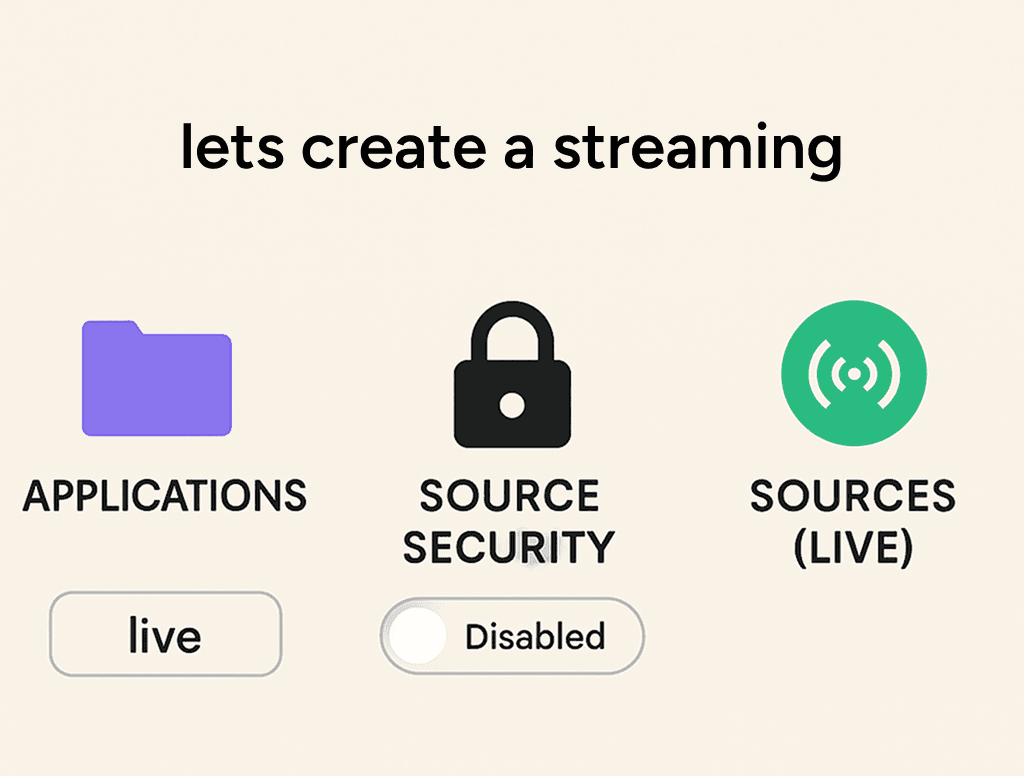
On the right under the Application Connection Settings section, you have some data that you will need while creating the publisher. Note down the following information:
- Host-Server
- Host-Port
- Application
And that’s it for the server side, we are now ready to create a live stream of our own.
Creating Flutter App
- Create a simple Flutter app or you can integrate in your existing Flutter app.
- Add the dependency
flutter_rtmp_publisher: ^0.0.1.You can choose from a large number of supported plugins, but I chose this as it needed no additional setup. - Add the relevant permissions
Camera,Microphone,Internetin yourAndroidManifest.xmlfor android andInfo.plistfor iOS. - In your Flutter app, create a button or any other widget that will trigger the streaming screen.
MaterialButton(

 child: Text("Start Stream",),

 onPressed: (){

  RTMPPublisher.streamVideo("rtmp://[Host-Server]:[Host-Port]/[Application]/myStream");

 },

),- Replace
Host-Server,Host-PortandApplicationwith the values that we obtained at the end of Setting up live streaming service section. - In the above code
myStreamis the name of the stream. You can use any name.
And that’s it. Your Flutter app is ready to publish. To check if it is working or not, just enter the same url rtmp://[Host-Server]:[Host-Port]/[Application]/myStream in any video player that supports RTMP streaming and you can see it live. Personally, I prefer to use HLSPlayer. You can paste the above link in the RTMP player tab there and now you have a complete live streaming application.
Here are a few points to keep in mind:
- You can choose any publisher like
WebRTCetc, Wowza supports almost all the popular options. - Don’t shy away from playing with Transcoder settings in Wowza Streaming Engine Manager to see what works best for you.
- Google Compute Engine is not a free service, so don’t keep the instance running unless you are using it, otherwise you’ll incur charges. I learnt it the hard way.
That’ll be all. Peace.