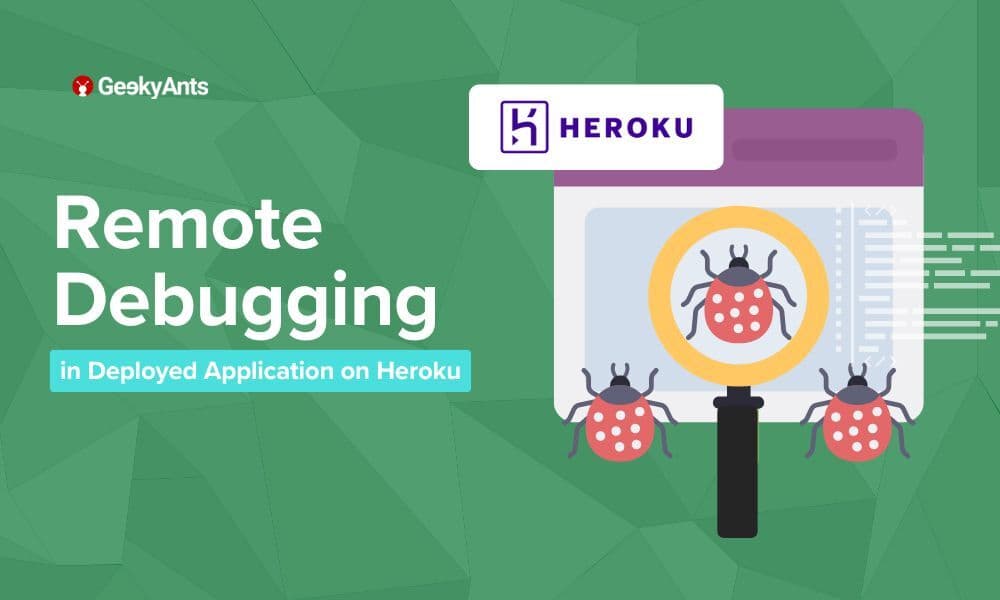
Remote debugging in Heroku

Aug 8, 2024

Remote debugging in Heroku

Discover how to easily set up remote debugging for your Node.js app on Heroku, and diagnose issues like a pro with our step-by-step guide!

Author

Shivam Pundir
Shivam PundirSenior Software Engineer - II

Hey there, fellow coder! Have you ever wished you could just step through your Node.js app running on Heroku like a local app? Well, grab your favorite drink and get comfy because we’re about to embark on a fun journey to set up remote debugging on Heroku!

Why Remote Debugging?

Debugging is a crucial part of development, ensuring your app runs smoothly and efficiently. Remote debugging is especially important when your app is deployed on a server, allowing you to diagnose issues that only appear in a deployed environment.

Prerequisites

Before we jump in, make sure you have:

  • A Node.js application deployed on Heroku.
  • The Heroku CLI installed on your machine.

Debugging Steps

Step 1: Enable Remote Debugging

First, we need to enable remote debugging for your Node.js app. Heroku uses the inspect flag to allow remote debugging.

  1. Modify Your Procfile: Add the --inspect flag to your Procfile. It should look something like this:
web: node –inspect index.js

2. Deploy Changes to Heroku: Commit your changes and push to Heroku:

git add Procfile
git commit -m “Enable remote debugging”
git push heroku master

Step 2: Open a Remote Debugging Session

Now that your app is configured, it’s time to connect to the remote debugger.

  1. Restart Your Heroku App: Restarting ensures the inspect flag is applied:
heroku restart

2. Forward Debugging Port: Forward traffic on a local port to a port inside a dyno; in this case both the local port and dyno port are 9229:

heroku ps:forward 9229

Step 3: Connect Your Debugger

With the SSH tunnel set up, you can now connect your favourite debugger. 

Using VS Code

  1. Open VS Code: Launch VS Code and open your project.
  2. Configure Debugger: Add a new configuration in your launch.json:
{
   "version": "0.2.0",
   "configurations": [{
       "address": "localhost",
       "localRoot": "${workspaceFolder}",
       "name": "Attach to Remote",
       "port": 9090,
       "remoteRoot": "/app",
       "request": "attach",
       "skipFiles": ["<node_internals>/**"],
       "type": "node",
   }]
}

3. Start Debugging: Select the "Attach to Heroku" configuration and start debugging. Set breakpoints, inspect variables, and step through your code like in a local environment.

Using IntelliJ IDEA / Webstorm

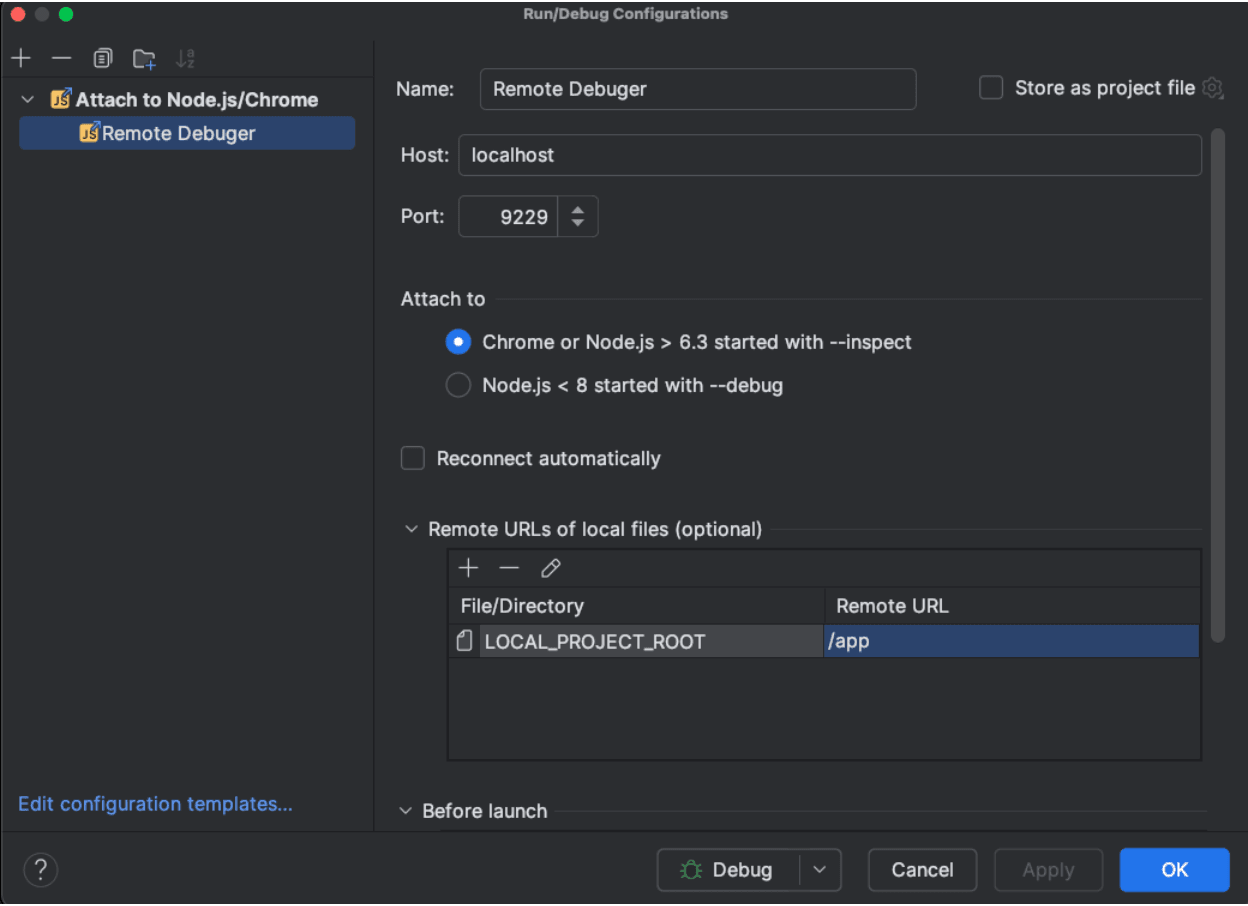
  1. Open Run Config: Open your IDE and go to Run > Edit Configurations. 
  2. Configure Debugger: Click the + button and select Attach to Node.js/Chrome:

3. Start Debugging: Select your newly created Node.js Remote Debug configuration, Click the debug icon and start debugging. Set breakpoints, inspect variables, and step through your code like in a local environment.

And there you have it! You’ve just set up remote debugging for your Node.js app on Heroku. High five!  Debugging in the cloud just became a whole lot cooler, right? If you hit any bumps along the way, double-check your SSH tunnel and configurations. Happy debugging!

Subscribe to Our Newsletter

More from the engineering frontline.

Dive deep into our research and insights on design, development, and the impact of various trends to businesses.
Insight
Building a Real-Time Photo Sync Video Experience Using 100ms SDK and Reactive State Management
Oct 15, 2026

Building a Real-Time Photo Sync Video Experience Using 100ms SDK and Reactive State Management

This blog explains how to build a real-time video experience with synchronized photo sharing, chat, and reactive state management using the 100ms SDK.

Insight
Taming Elasticsearch at Scale
Oct 13, 2026

Taming Elasticsearch at Scale

Optimize Elasticsearch for millions of records with better pagination, leaner payloads, efficient filtering, faster ingestion, and frontend techniques that keep search responsive with increase in data.

Insight
Deep Linking for Mobile Apps(React Native) with NestJs, AWS CloudFront, S3 & ALB: A Complete Guide
Oct 13, 2026

Deep Linking for Mobile Apps(React Native) with NestJs, AWS CloudFront, S3 & ALB: A Complete Guide

Build a self-hosted deep linking and referral system for React Native without a third-party SDK. This guide covers Android App Links, iOS Universal Links, an S3 and CloudFront setup, and a NestJS backend that routes users to the right app store.

Insight
How We Engineered a Three-Path Reward Processing System for a Real-Time Sports Platform
Oct 12, 2026

How We Engineered a Three-Path Reward Processing System for a Real-Time Sports Platform

This blog explains how a real-time sports platform uses synchronous, asynchronous, and scheduled processing paths to handle rewards without slowing down the player experience.

Insight
Building an MCP-Powered QA Agent
Oct 12, 2026

Building an MCP-Powered QA Agent

Build an MCP QA agent that runs Playwright tests, validates APIs, and analyzes failures through a controlled, auditable tool layer with human approval.

Insight
From Test Failure to Root Cause: Building an AI-Assisted Playwright Failure Analysis Pipeline
Oct 9, 2026

From Test Failure to Root Cause: Building an AI-Assisted Playwright Failure Analysis Pipeline

This blog explains how an AI-assisted Playwright pipeline can analyze test failure evidence, identify probable root causes, and support human-validated debugging.

Insight
The Model Context Protocol: From First Call to Production
Oct 8, 2026

The Model Context Protocol: From First Call to Production

This blog explains how Model Context Protocol (MCP) works, from tool discovery and execution to OAuth authorization, security controls, and production deployment.

Footer

The Right Conversation Can

Save You Six Months.

Book a Call