
In this article, we will explore the process of creating nested reorderable lists in Flutter, with a focus on implementing custom scrolling behaviour. Reorderable lists are a powerful UI component that allow users to rearrange items within a list by dragging and dropping. While Flutter provides a built-in ReorderableListView widget that handles most of the functionality out of the box, certain use cases such as nested reorderable lists introduce challenges, particularly with scrolling behavior.
We will cover:
- The basics of
ReorderableListView - Creating a nested reorderable list
- Implementing custom scrolling to handle edge cases
- Full example with code and explanation
Understanding ReorderableListView
The ReorderableListView widget in Flutter makes it easy to implement drag-and-drop reordering within a list. Here’s a simple example to demonstrate the basic usage:
import 'package:flutter/material.dart';

void main() => runApp(MyApp());

class MyApp extends StatelessWidget {
  @override
  Widget build(BuildContext context) {
    return MaterialApp(
      home: SimpleReorderableList(),
    );
  }
}

class SimpleReorderableList extends StatefulWidget {
  @override
  _SimpleReorderableListState createState() => _SimpleReorderableListState();
}

class _SimpleReorderableListState extends State<SimpleReorderableList> {
  List<String> _items = List.generate(10, (index) => 'Item ${index + 1}');

  void _onReorder(int oldIndex, int newIndex) {
    if (newIndex > oldIndex) {
      newIndex -= 1;
    }
    final item = _items.removeAt(oldIndex);
    _items.insert(newIndex, item);
    setState(() {});
  }

  @override
  Widget build(BuildContext context) {
    return Scaffold(
      appBar: AppBar(title: Text('Reorderable List')),
      body: ReorderableListView(
        onReorder: _onReorder,
        children: _items.map((item) {
          return ListTile(
            key: Key(item),
            title: Text(item),
          );
        }).toList(),
      ),
    );
  }
}
Challenges with Nested Reorderable Lists
The Problem
When implementing a nested ReorderableListView inside a SingleChildScrollView, the scrolling behaviour can be problematic. Specifically, the list does not scroll automatically when you drag an item near the edges of the screen, which can lead to a poor user experience.
When using nested ReorderableListView widgets, you might encounter issues, particularly with scrolling behavior. In a single ReorderableListView, scrolling is handled automatically as you drag an item near the top or bottom of the list. However, when nesting reorderable lists inside a scrollable parent, you might find that scrolling doesn’t behave as expected, especially when dragging items between different lists.
Implementing Nested Reorderable Lists
Let's build a more complex example with nested reorderable lists, and address the custom scrolling behavior to handle edge cases.
Step 1: Creating the Main Structure
First, we will set up the main structure with a scrollable parent that contains two reorderable lists.
import 'package:flutter/material.dart';

void main() => runApp(MyApp());

class MyApp extends StatelessWidget {
  @override
  Widget build(BuildContext context) {
    return MaterialApp(
      home: NestedReorderableList(),
    );
  }
}

class NestedReorderableList extends StatefulWidget {
  @override
  _NestedReorderableListState createState() => _NestedReorderableListState();
}

class _NestedReorderableListState extends State<NestedReorderableList> {
  final List<String> _exercises = List.generate(15, (index) => 'Exercise ${index + 1}');
  final List<String> _assessments = List.generate(10, (index) => 'Assessment ${index + 1}');

  void _onReorderExercises(int oldIndex, int newIndex) {
    if (newIndex > oldIndex) {
      newIndex -= 1;
    }
    final item = _exercises.removeAt(oldIndex);
    _exercises.insert(newIndex, item);
    setState(() {});
  }

  void _onReorderAssessments(int oldIndex, int newIndex) {
    if (newIndex > oldIndex) {
      newIndex -= 1;
    }
    final item = _assessments.removeAt(oldIndex);
    _assessments.insert(newIndex, item);
    setState(() {});
  }

  @override
  Widget build(BuildContext context) {
    return Scaffold(
      appBar: AppBar(title: Text('Nested Reorderable List')),
      body: Scrollbar(
        thumbVisibility: true,
        child: SingleChildScrollView(
          child: Column(
            children: [
              _buildReorderableList(_exercises, _onReorderExercises),
              Divider(color: Colors.green, thickness: 4, height: 30),
              _buildReorderableList(_assessments, _onReorderAssessments),
            ],
          ),
        ),
      ),
    );
  }

  Widget _buildReorderableList(List<String> items, void Function(int, int) onReorder) {
    return ReorderableListView(
      shrinkWrap: true,
      physics: NeverScrollableScrollPhysics(),
      onReorder: onReorder,
      children: items.map((item) {
        return ListTile(
          key: Key(item),
          title: Text(item),
        );
      }).toList(),
    );
  }
}
Step 2: Handling Custom Scrolling
To handle custom scrolling when dragging items near the top or bottom, we need to implement logic that smooths out the scrolling behavior. The goal is to ensure the parent scroll view scrolls appropriately when dragging items in nested reorderable lists.
The Solution
To solve this issue, we need to:
- Use a
ScrollControllerfor the main scroll view. - Handle continuous scrolling by monitoring the pointer's position relative to the screen.
- Use a
Timerto ensure smooth and continuous scrolling when the user drags an item near the edges.
Complete Implementation
Below is the complete implementation of a nested reorderable list with custom scroll behavior in Flutter:
import 'dart:async';
import 'package:flutter/material.dart';

void main() => runApp(MyApp());

class MyApp extends StatelessWidget {
  @override
  Widget build(BuildContext context) {
    return MaterialApp(
      home: NestedReorderableList(),
    );
  }
}

class NestedReorderableList extends StatefulWidget {
  @override
  _NestedReorderableListState createState() => _NestedReorderableListState();
}

class _NestedReorderableListState extends State<NestedReorderableList> {
  final List<String> _exercises =
      List.generate(15, (index) => 'Exercise ${index + 1}');
  final List<String> _assessments =
      List.generate(10, (index) => 'Assessment ${index + 1}');
  final ScrollController _scrollController = ScrollController();
  Timer? _scrollTimer;

  void _onReorderExercises(int oldIndex, int newIndex) {
    if (newIndex > oldIndex) {
      newIndex -= 1;
    }
    final item = _exercises.removeAt(oldIndex);
    _exercises.insert(newIndex, item);
    setState(() {});
  }

  void _onReorderAssessments(int oldIndex, int newIndex) {
    if (newIndex > oldIndex) {
      newIndex -= 1;
    }
    final item = _assessments.removeAt(oldIndex);
    _assessments.insert(newIndex, item);
    setState(() {});
  }

  void _startAutoScroll(double dy) {
    const scrollStep = 10.0;
    const scrollThreshold = 100.0;
    const scrollDuration = Duration(milliseconds: 20);

    final screenHeight = MediaQuery.of(context).size.height;

    if (dy < scrollThreshold) {
      _startScrolling(-scrollStep, scrollDuration);
    } else if (dy > screenHeight - scrollThreshold) {
      _startScrolling(scrollStep, scrollDuration);
    } else {
      _stopScrolling();
    }
  }

  void _startScrolling(double step, Duration duration) {
    _stopScrolling(); // Stop any existing timer

    _scrollTimer = Timer.periodic(duration, (timer) {
      final newOffset = (_scrollController.offset + step).clamp(
        0.0,
        _scrollController.position.maxScrollExtent,
      );
      _scrollController.jumpTo(newOffset);
    });
  }

  void _stopScrolling() {
    _scrollTimer?.cancel();
    _scrollTimer = null;
  }

  @override
  Widget build(BuildContext context) {
    return Scaffold(
      appBar: AppBar(title: Text('Nested Reorderable List')),
      body: Scrollbar(
        controller: _scrollController,
        thumbVisibility: true,
        child: SingleChildScrollView(
          controller: _scrollController,
          child: Column(
            children: [
              _buildReorderableList(_exercises, _onReorderExercises),
              Divider(color: Colors.green, thickness: 4, height: 30),
              _buildReorderableList(_assessments, _onReorderAssessments),
            ],
          ),
        ),
      ),
    );
  }

  Widget _buildReorderableList(
      List<String> items, void Function(int, int) onReorder) {
    return Listener(
      onPointerMove: (details) {
        _startAutoScroll(details.position.dy);
      },
      onPointerUp: (_) {
        _stopScrolling();
      },
      onPointerCancel: (_) {
        _stopScrolling();
      },
      child: ReorderableListView(
        shrinkWrap: true,
        physics: NeverScrollableScrollPhysics(),
        onReorder: onReorder,
        children: items.map((item) {
          return ListTile(
            key: Key(item),
            title: Text(item),
          );
        }).toList(),
      ),
    );
  }

  @override
  void dispose() {
    _scrollController.dispose();
    _stopScrolling();
    super.dispose();
  }
}
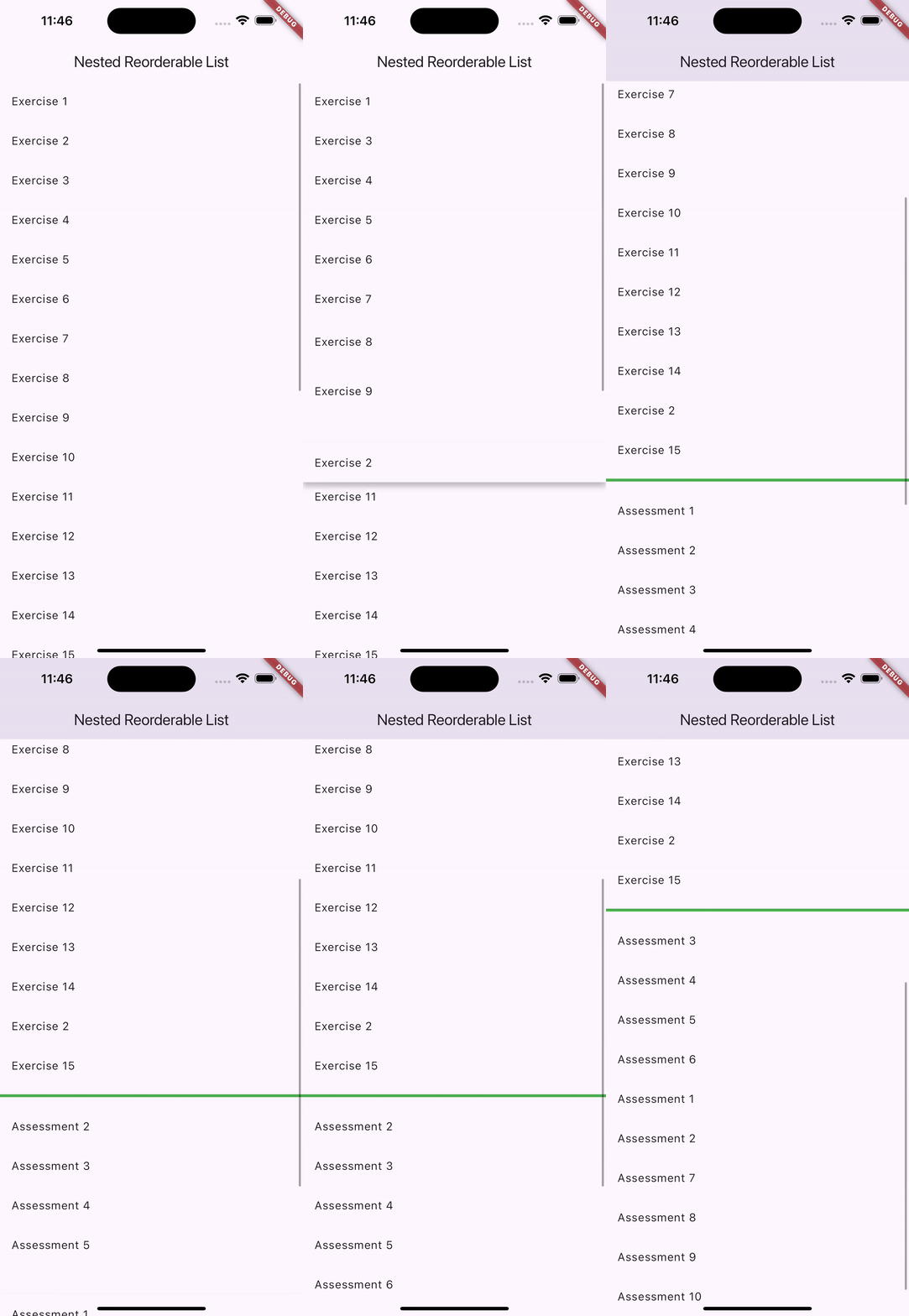
Explanation of Custom Scrolling Logic
- Listener Widget:
- The
Listenerwidget is used to capture pointer move events. - Calls
_startAutoScrollwith thedyposition of the pointer to determine if scrolling should be started.
- The
- _startAutoScroll Method:
- Checks if the pointer is near the top or bottom of the screen.
- Calls
_startScrollingto initiate scrolling in the respective direction if the pointer is within the scroll threshold.
- _startScrolling and _stopScrolling Methods:
- These methods handle the actual scrolling using a periodic timer to ensure smooth and continuous scrolling.
jumpTois used to update the scroll position instantly, and the timer ensures regular updates for smooth scrolling.
- SingleChildScrollView with ScrollController:
- Ensures the entire content is scrollable with a single
ScrollController. - This controller is used to manage scrolling when dragging items near the edges.
- Ensures the entire content is scrollable with a single
By using these techniques, you can ensure a smooth and intuitive scrolling experience when dragging items in nested reorderable lists.
Conclusion
Creating nested reorderable lists in Flutter with custom scrolling behavior can be challenging but rewarding. By understanding the basics of ReorderableListView and implementing custom logic for handling edge cases, you can build a robust and user-friendly interface.
The full example provided in this article should give you a solid foundation to start with nested reorderable lists in your Flutter applications. Feel free to adjust the scrolling parameters and behavior to fit your specific needs. Happy coding!