
Reading data from Google Sheets in a Flutter app can be incredibly useful for many applications, such as displaying data, managing configurations, or handling dynamic content. In this article, we'll walk you through setting up a Google Cloud Console project, creating a service account, and using the googleapis package to read data from Google Sheets in your Flutter app.
Additionally, we'll cover how to handle nested Google Sheets by extracting the GID from the Google Sheets URL.
Prerequisites
Before we start, ensure you have the following:
- A Google account.
- Flutter is installed on your machine.
Step 1: Set Up Google Cloud Project
- Create a Google Cloud Project
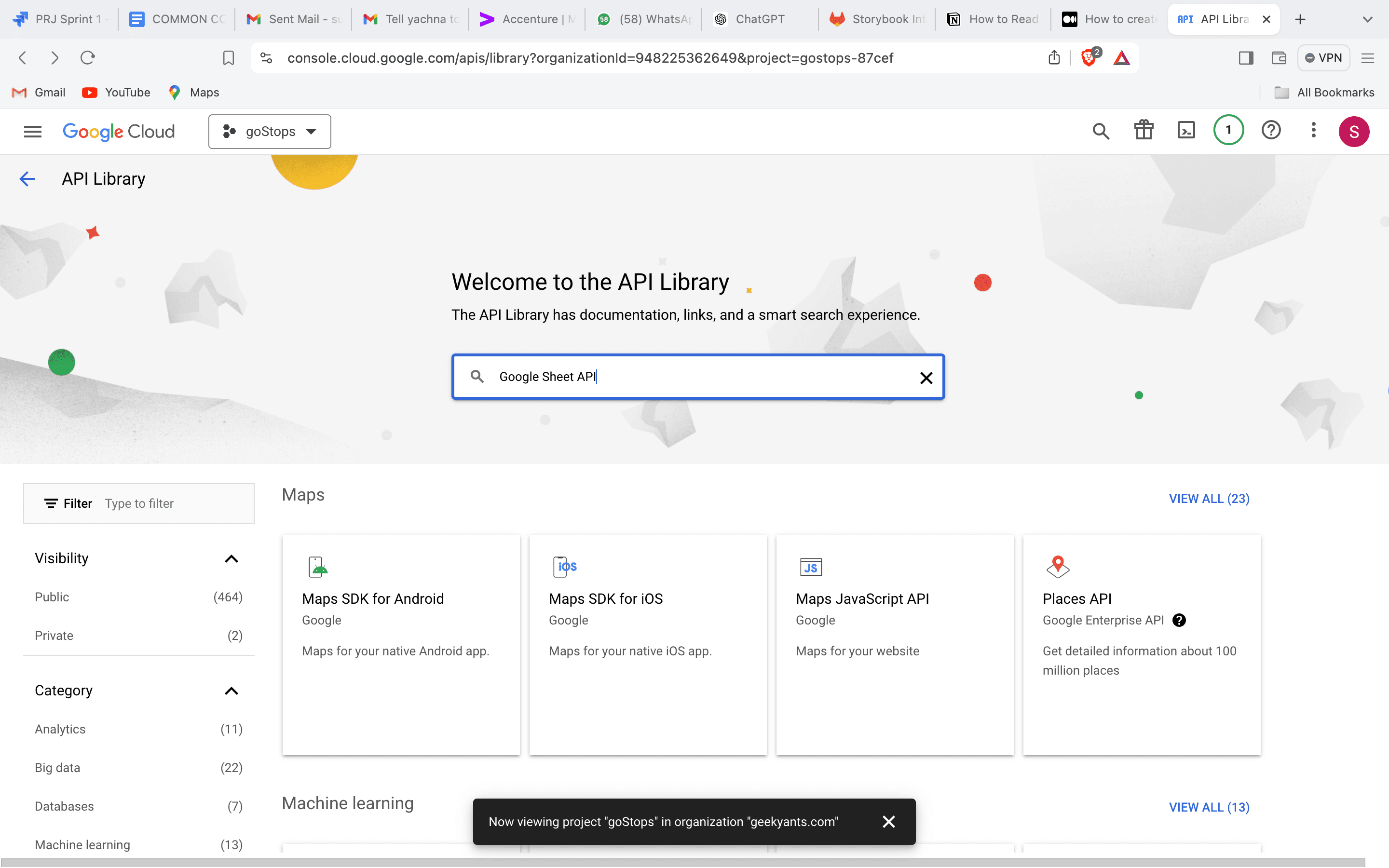
- Go to the Google Cloud Console.
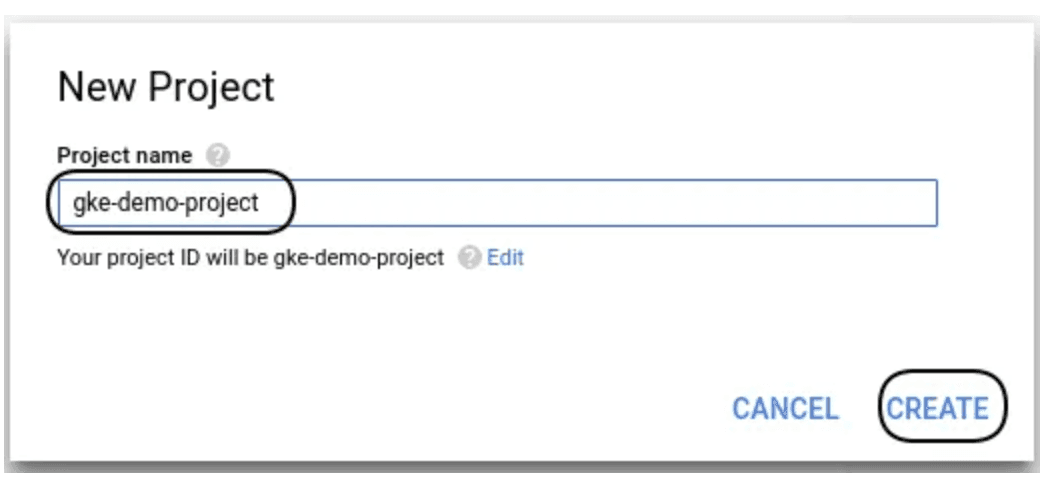
- Click on the project drop-down and select "New Project."
- Enter a project name and click "Create."

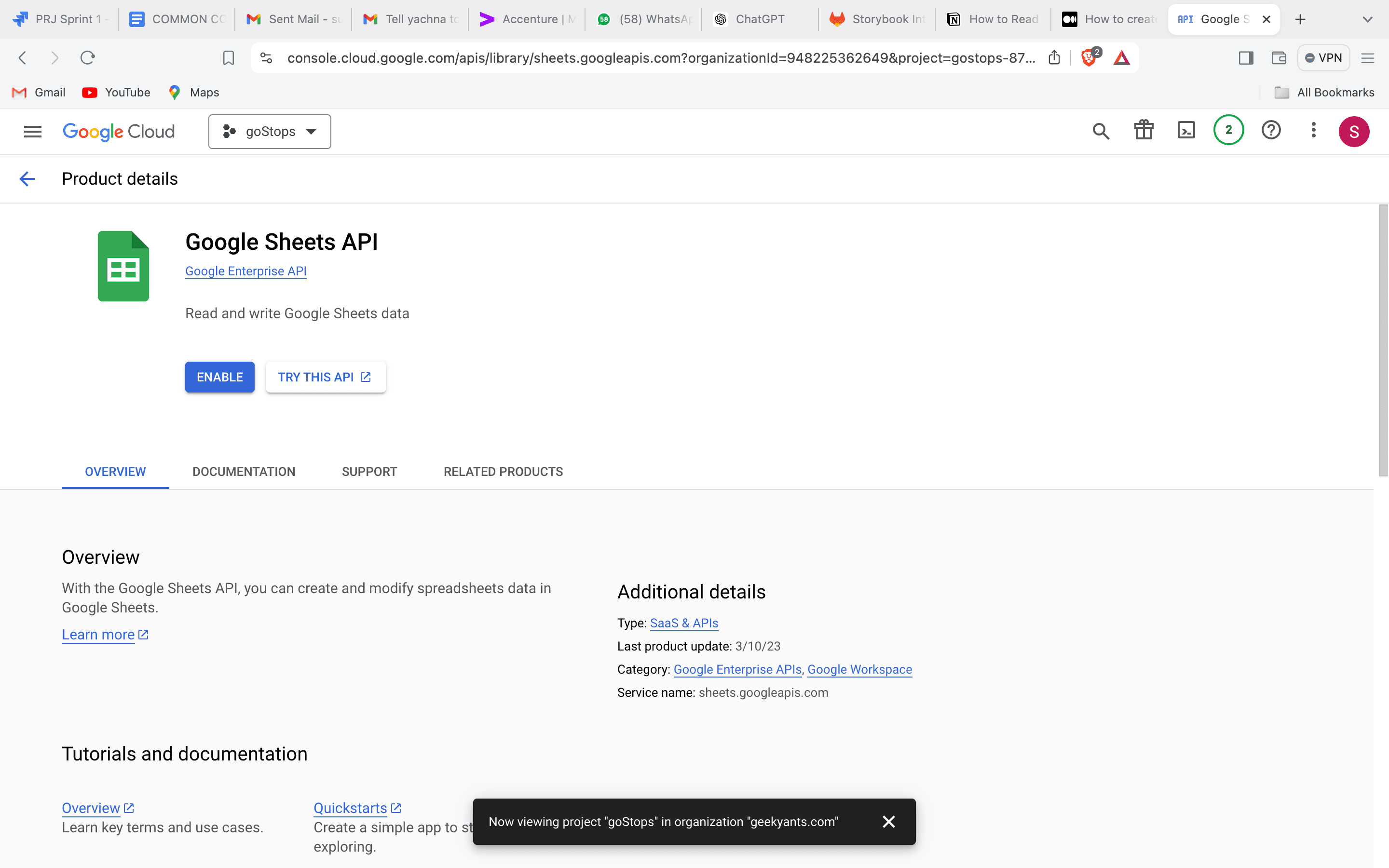
Step 2: Create Service Account
- Create Service Account
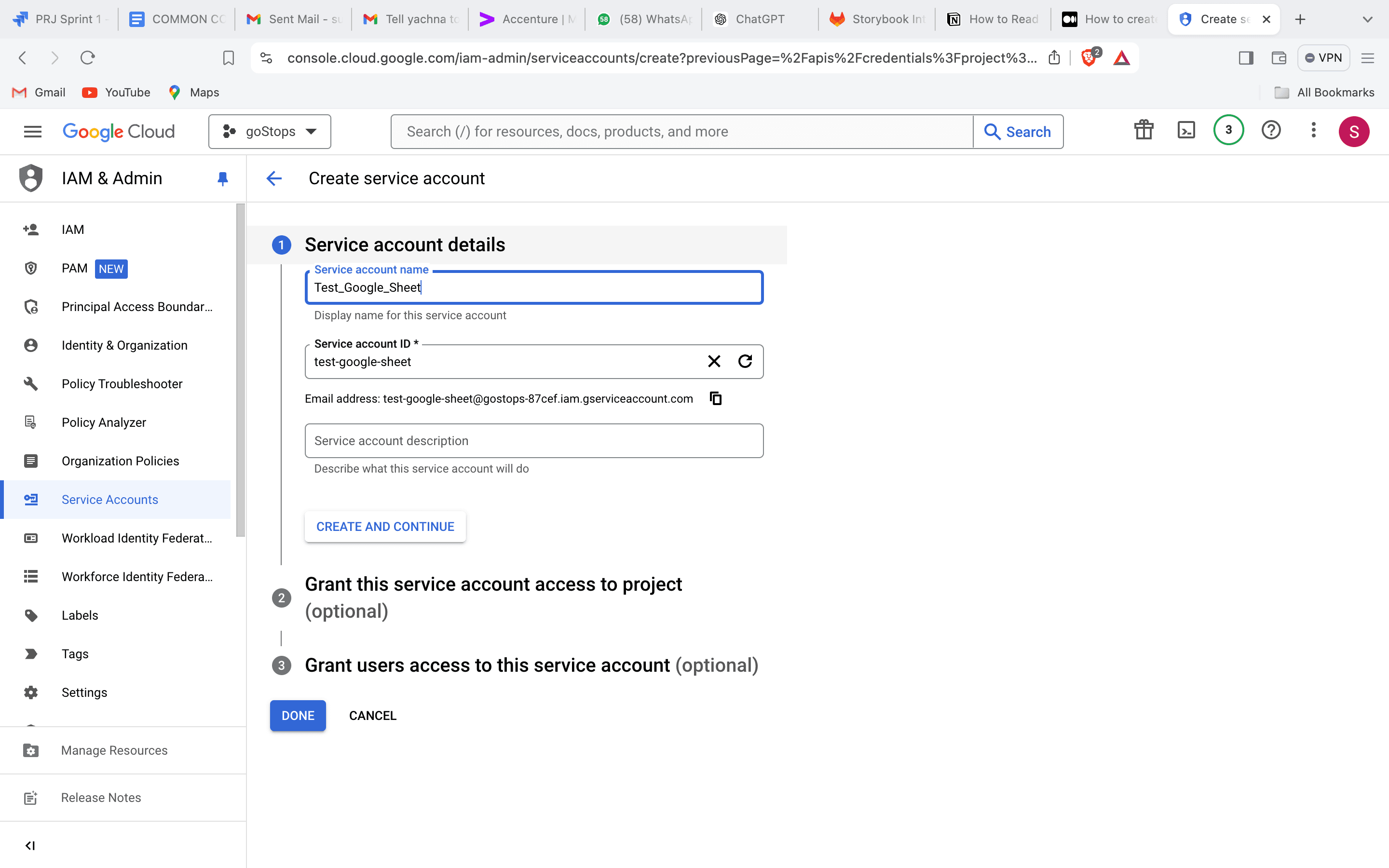
- Go to the Service Accounts page.
- Click "Create Service Account."
- Enter a name and ID for your service account, then click "Create."

- Grant Permissions
- To grant permission, assign "Editor" to your service account and click "Continue."
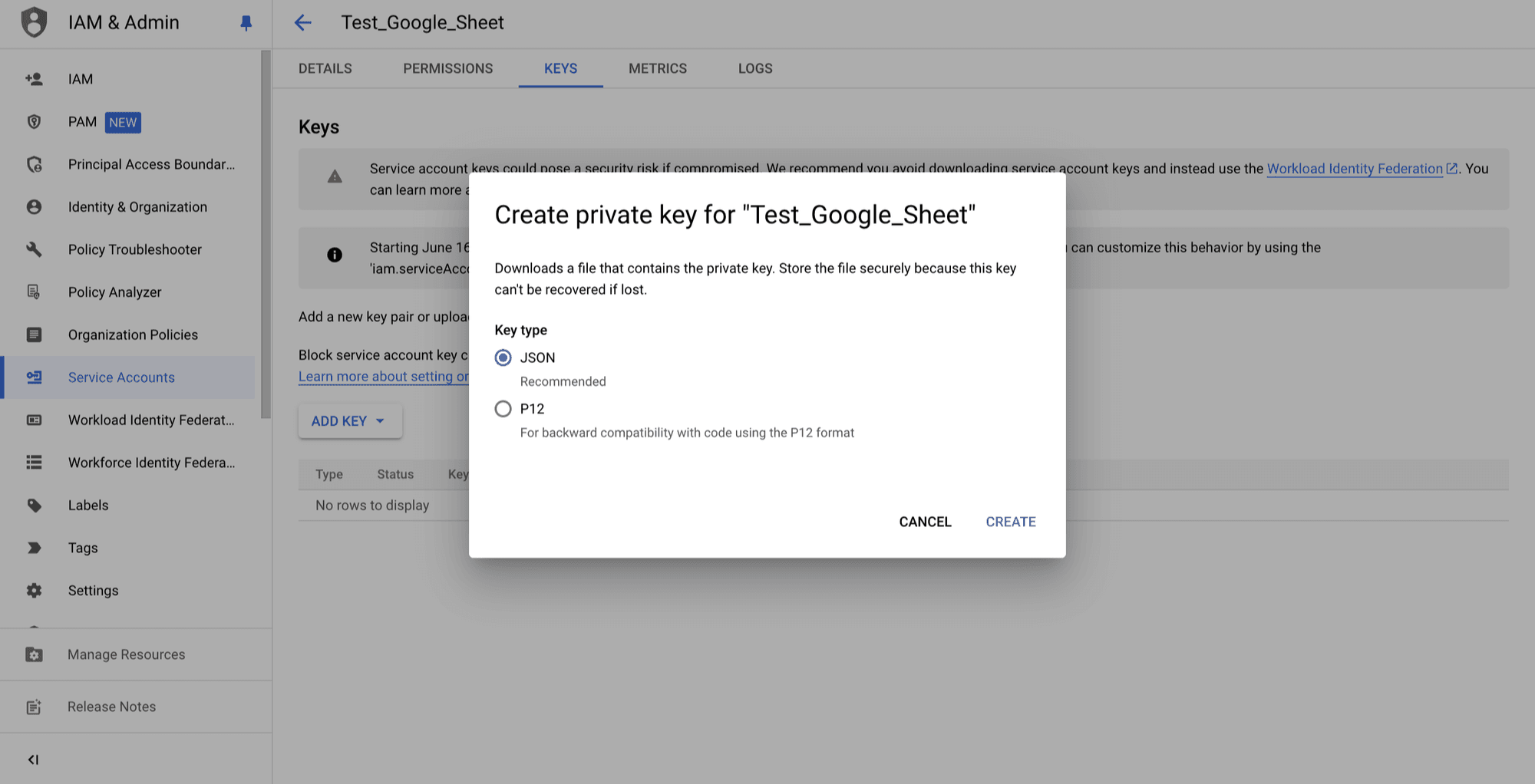
- Create Key
- Click "Create Key" and select "JSON" as the key type.
- A JSON file will be downloaded. Save this file securely as it contains your service account credentials.
Step 3: Share Google Sheet with Service Account
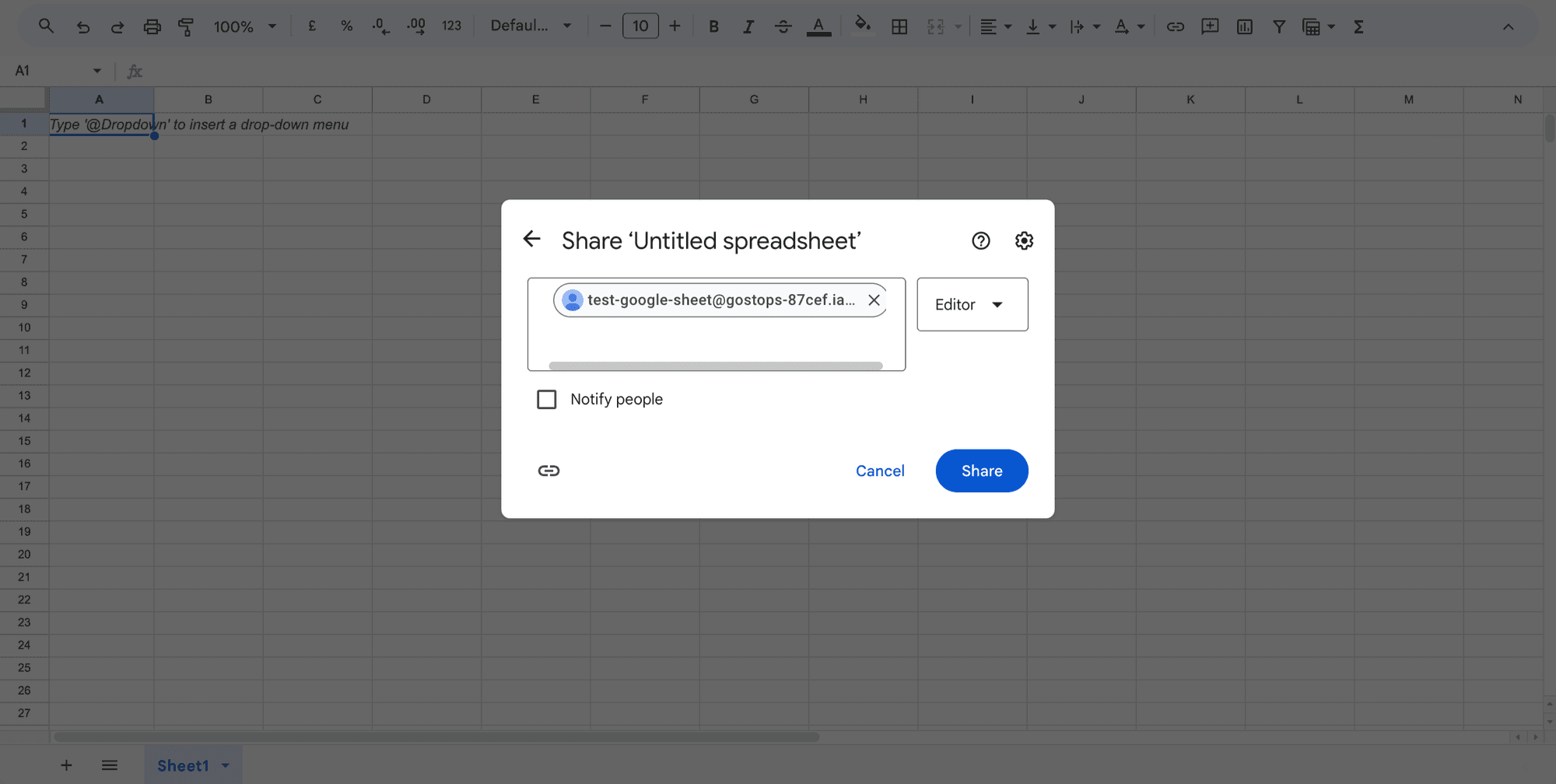
- Open your Google Sheet.
- Click "Share" and enter the email address of your service account (found in the JSON key file).
- Grant "Viewer" or "Editor" access as needed.
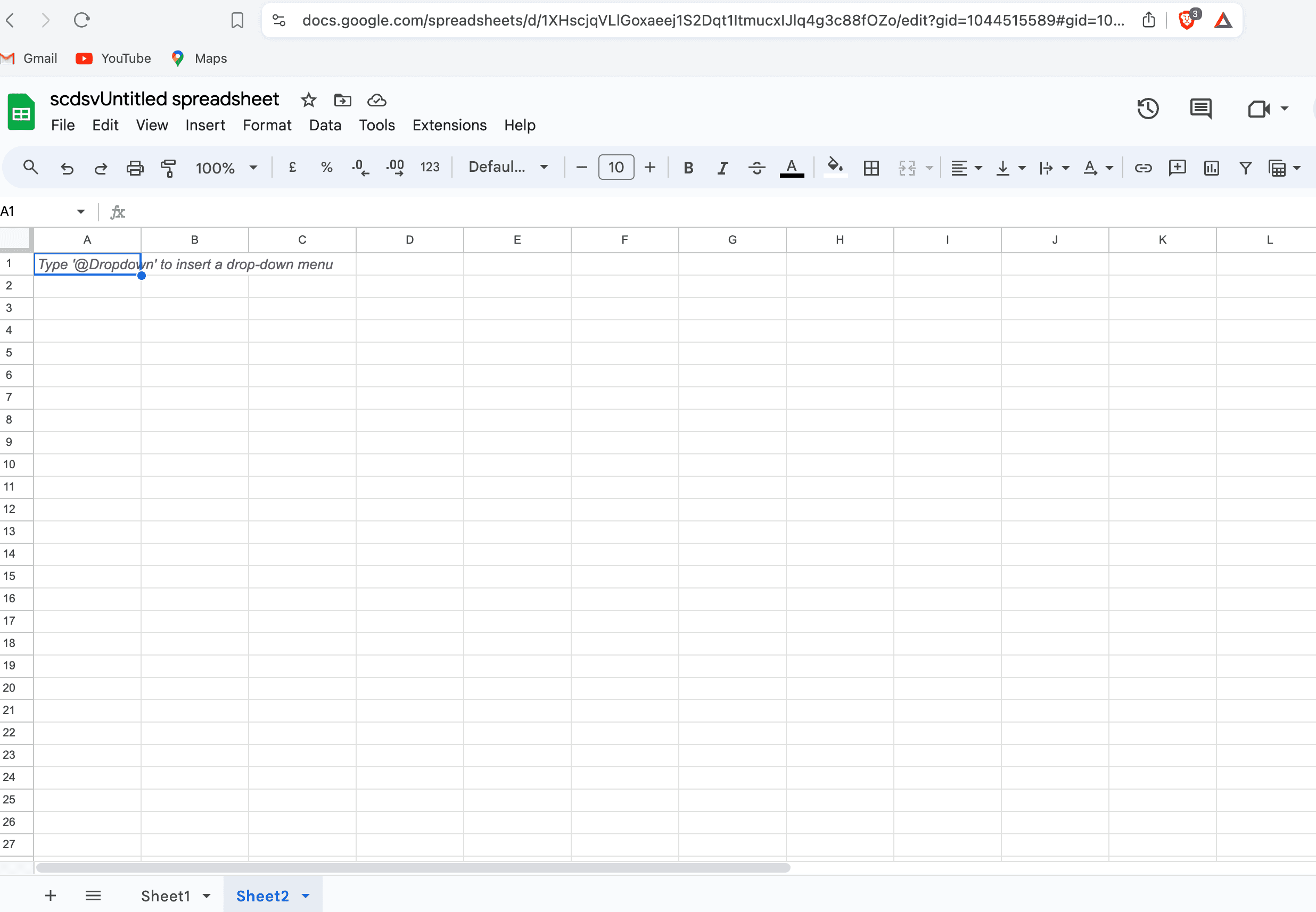
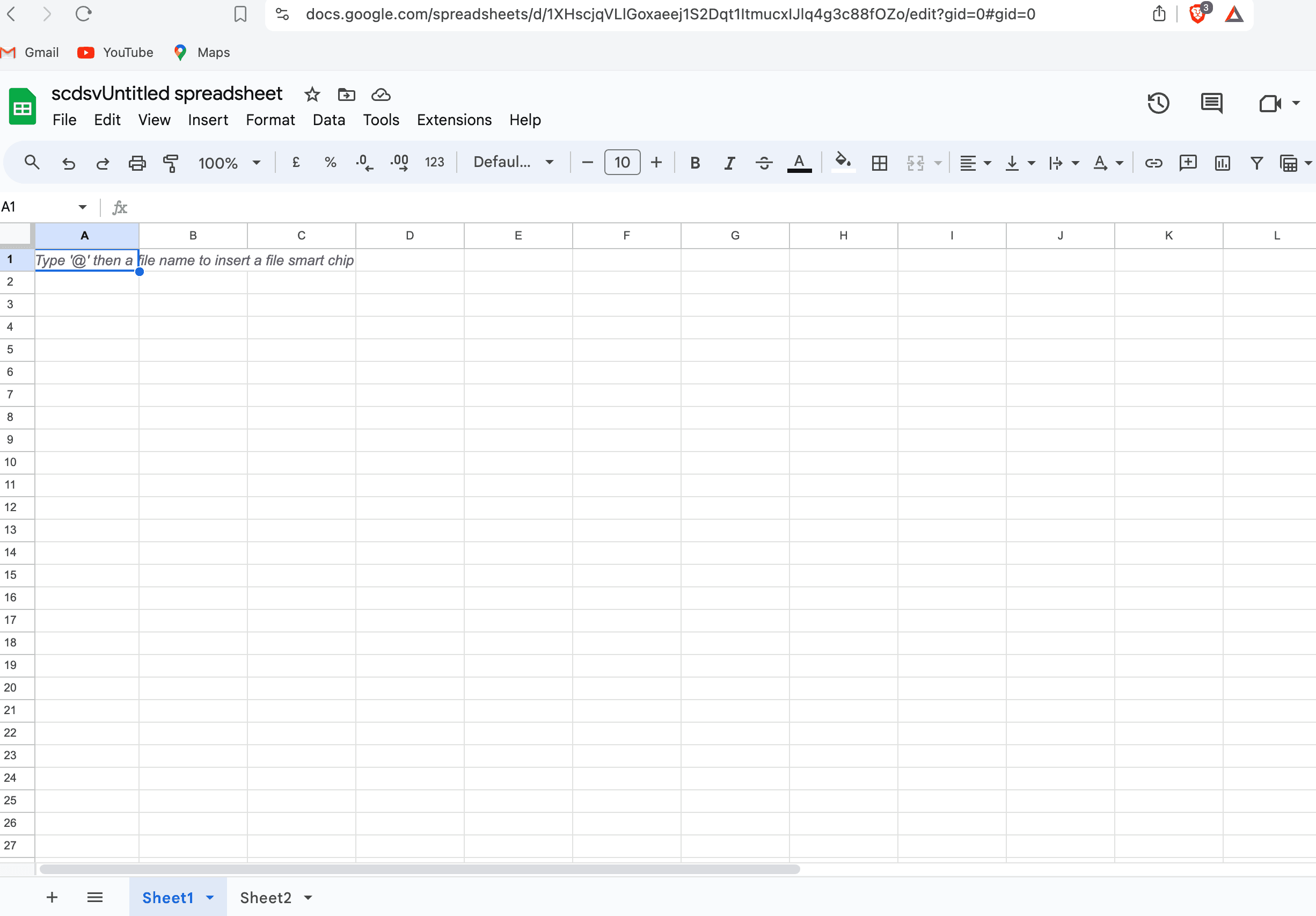
Below i am differentiating google sheets which is nested on the behalf of GID number, which is available at the end of google sheet url
Step 4: Integrate Google Sheets API in Flutter
1. Add Dependencies Add the following dependencies in your pubspec.yaml file:
dependencies:
  flutter:
    sdk: flutter
  googleapis: ^10.0.0
  googleapis_auth: ^1.2.0
2. Create Dart File for Google Sheets API Service
Create a Dart file (e.g., google_sheets_api.dart) and add the following code:
import 'package:googleapis/sheets/v4.dart';
import 'package:googleapis_auth/auth_io.dart';

class GoogleSheetsApiData {
  String url;
  String clientId;
  String? spreadsheetId;
  String clientEmail;
  String privateKey;
  String? gid;

  GoogleSheetsApiData(
      {required this.clientEmail,
      required this.clientId,
      required this.privateKey,
      required this.url});

  void extractGidAndIdFromUrl(String url) {
    Uri uri = Uri.parse(url);

    // Extract spreadsheet ID
    String path = uri.path;
    List<String> pathSegments = path.split('/');

    if (pathSegments.length > 2) {
      spreadsheetId = pathSegments[3];
    }

    // Extract gid
    String fragment = uri.fragment;

    if (fragment.contains("gid=")) {
      gid = fragment.split("gid=")[1];
    }
  }

  Future<dynamic> accessGoogleSheetData() async {
    // extract GID and spreadsheet Id from url
    extractGidAndIdFromUrl(url);

    // Your Google Sheets API credentials
    final credentials = ServiceAccountCredentials.fromJson({
      'client_id': clientId,
      // Your service account email
      'client_email': clientEmail,
      // Your private key
      'private_key': privateKey,
      // Google Sheets API scope
      'scopes': [SheetsApi.spreadsheetsReadonlyScope],
      'type': 'service_account'
    });

    final client = await clientViaServiceAccount(
        credentials, [SheetsApi.spreadsheetsReadonlyScope]);

    // Google Sheets API instance
    final sheets = SheetsApi(client);
    // Spreadsheet ID and range

    try {
      // Retrieve data from Google Sheets

      var allTabSheets = await sheets.spreadsheets.get(spreadsheetId!);

      // log("sheet tab length: ${allTabSheets.sheets?.length}");
      Sheet? sheet = allTabSheets.sheets?.firstWhere((sheet) {
        // log("${sheet.properties?.sheetId}");
        return sheet.properties?.sheetId.toString() == gid;
      });

      final range = '${sheet?.properties?.title}';

      // log("sheet name.. $range");
      var response =
          await sheets.spreadsheets.values.get(spreadsheetId!, range);

      return response;
    } finally {
      // Close the HTTP client to release resources
      client.close();
    }
  }
}
Step5: Calling the Method to Fetch Data
To fetch data from Google Sheets, you can use a method call that initializes the GoogleSheetsApiData with the necessary parameters and then calls accessGoogleSheetData to retrieve the data. Here’s how you can do it:
var response = await GoogleSheetsApiData(
  clientEmail: clientEmail,
  clientId: clientId,
  privateKey: privateKey,
  url: google_sheet_url
).accessGoogleSheetData();

log("response: $response);
In this code:
clientEmail,clientId, andprivateKeyare obtained from the service account JSON file.google_sheet_urlis the URL of the Google Sheet you want to read.GoogleSheetsApiDatais a class that encapsulates the logic for accessing the Google Sheets API.
Conclusion
You have now set up your Flutter app to read data from Google Sheets using the googleapis package, including handling nested Google Sheets by extracting the GID from the Google Sheets URL. This setup allows your app to dynamically fetch and display data from Google Sheets, providing flexibility and easy management of content. For more advanced use cases, explore the extensive capabilities of the Google Sheets API.