

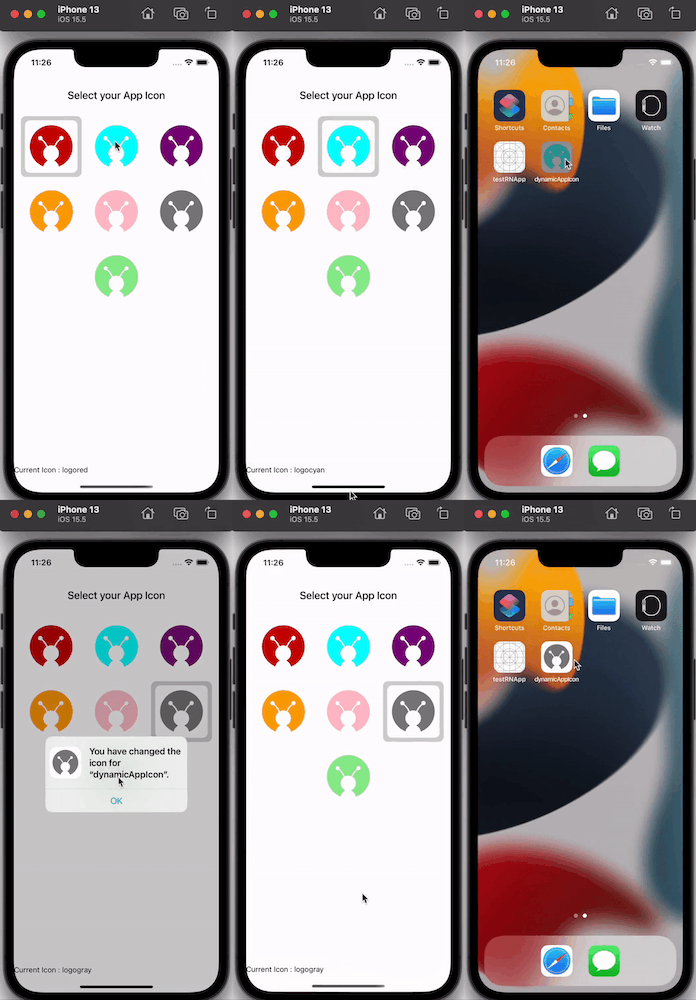
Today, many apps change their app icons programmatically from within the app. This adds to their interactive UI and helps enhance user experience.

In this blog, we'll try to change the app icon on the fly easily using this awesome npm package - react-native-change-icon.
Demo
Installing the Package
You don't need to worry about the native code for changing the app icon as react-native-change-icon handles all of that for you.
Run this command in your CLI inside your project directory:
npm i react-native-change-iconOr
yarn add react-native-change-iconCreating App Icons for Your App
Go to appicon.co to generate your app icons by uploading a 1024x1024 resolution image.
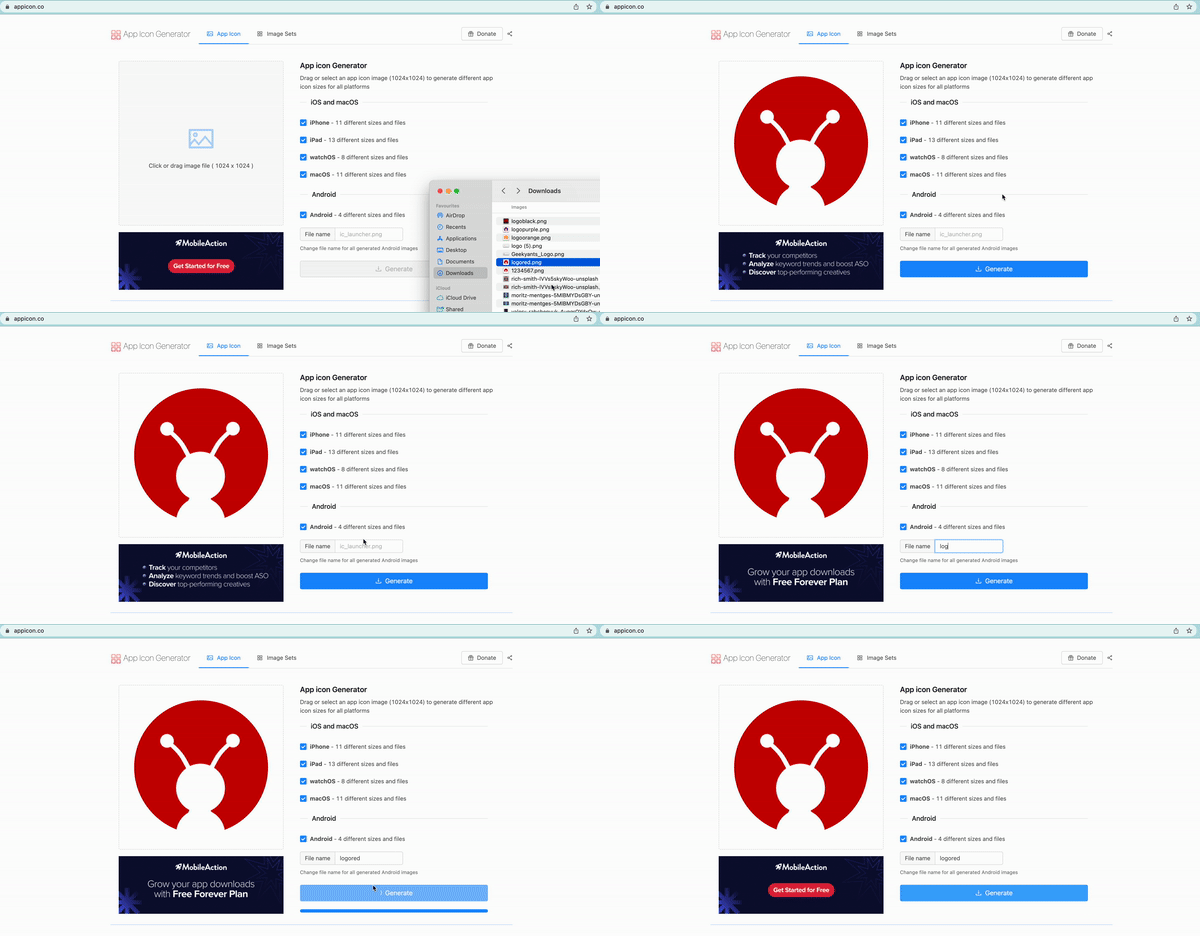
Just like above, you can create your other app icons as well.
Note: Icon names must contain only lowercase a-z.
Setting up The Dynamic App Icon
For Android
1. Adding The App Icons
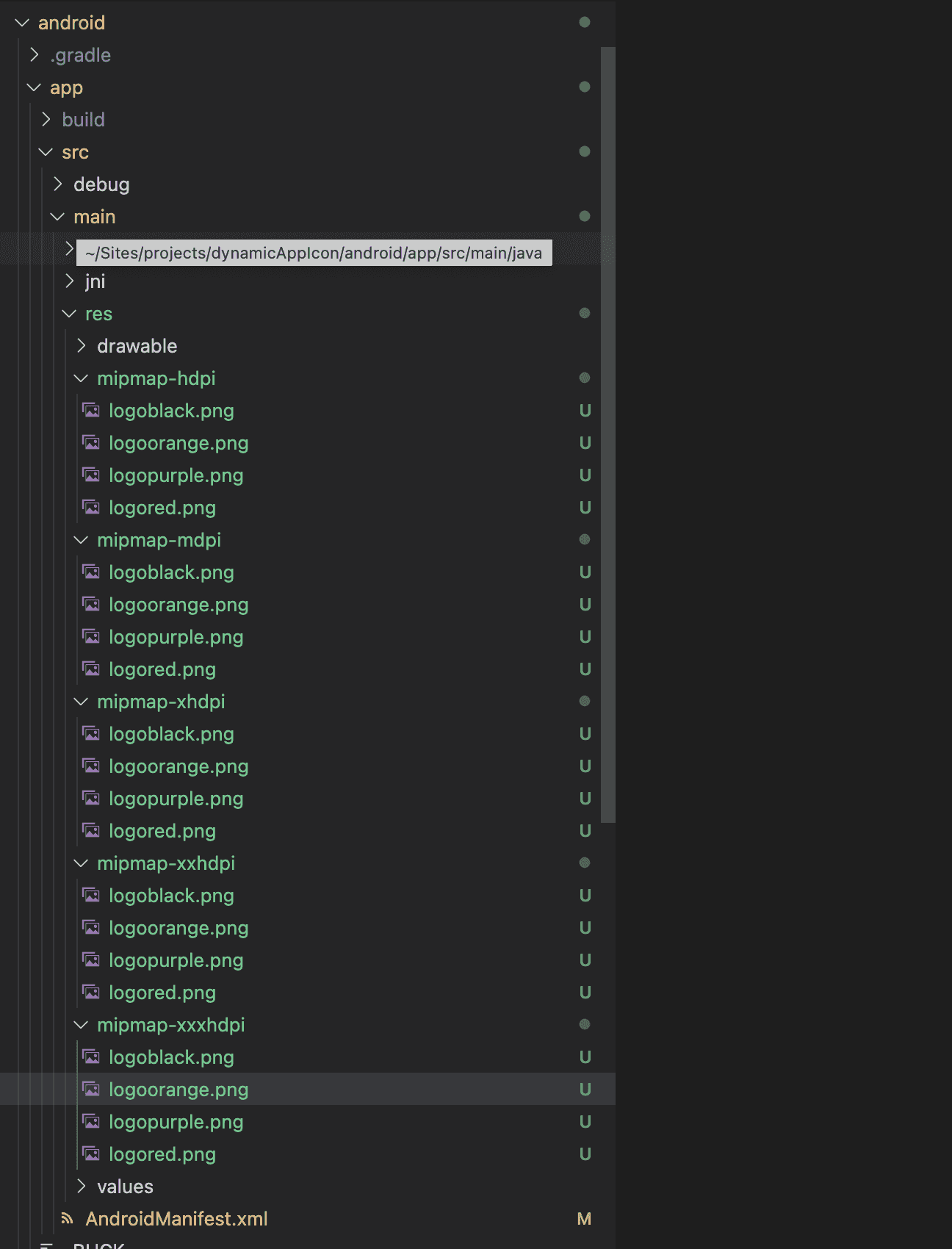
As you now have your app icons, Go to android ->app -> src -> main -> res -> mipmap-* directories: and add all the icons you need.
Once you are done adding the icons, your folder will look similar to this.
2. Updating AndroidManifest.xml file
For each of your app icon, you'll be adding an activity-alias like this.
<activity-alias
			android:name="com.dynamicappicon.MainActivitylogored"
			android:enabled="true"
			android:exported="true"
			android:icon="@mipmap/logored"
			android:targetActivity=".MainActivity">
			<intent-filter>
				<action android:name="android.intent.action.MAIN" />
				<category android:name="android.intent.category.LAUNCHER" />
			</intent-filter>
		</activity-alias>
name in this should be the package + MainActivity + {icon name}.
In the end, your AndroidManifest.xml file will look like this:
<manifest xmlns:android="http://schemas.android.com/apk/res/android"
    package="com.dynamicappicon">

    <uses-permission android:name="android.permission.INTERNET" />

	<application
		android:name=".MainApplication"
		android:label="@string/app_name"
		android:icon="@mipmap/logored"
		android:allowBackup="false"
		android:theme="@style/AppTheme">
		<activity
    android:name=".MainActivity" />
		<activity-alias
			android:name="com.dynamicappicon.MainActivitylogored"
			android:enabled="true"
			android:exported="true"
			android:icon="@mipmap/logored"
			android:targetActivity=".MainActivity">
			<intent-filter>
				<action android:name="android.intent.action.MAIN" />
				<category android:name="android.intent.category.LAUNCHER" />
			</intent-filter>
		</activity-alias>
		<activity-alias
			android:name="com.dynamicappicon.MainActivitylogoblack"
			android:enabled="false"
			android:exported="true"
			android:icon="@mipmap/logoblack"
			android:targetActivity=".MainActivity">
			<intent-filter>
				<action android:name="android.intent.action.MAIN" />
				<category android:name="android.intent.category.LAUNCHER" />
			</intent-filter>
		</activity-alias>
	</application>
</manifest>
You can create more <activity-alias> tags to make more alternate icons.
For iOS
- First, go to the
ios/folder and dopod install. - Open your app in Xcode and add an
AppIconsgroup to your app. - Add all your 120x120 resolution image as
image@2x.pngand 180x180 resolution image asimage@3x.png. - Open the
Info.plistfile. - Add
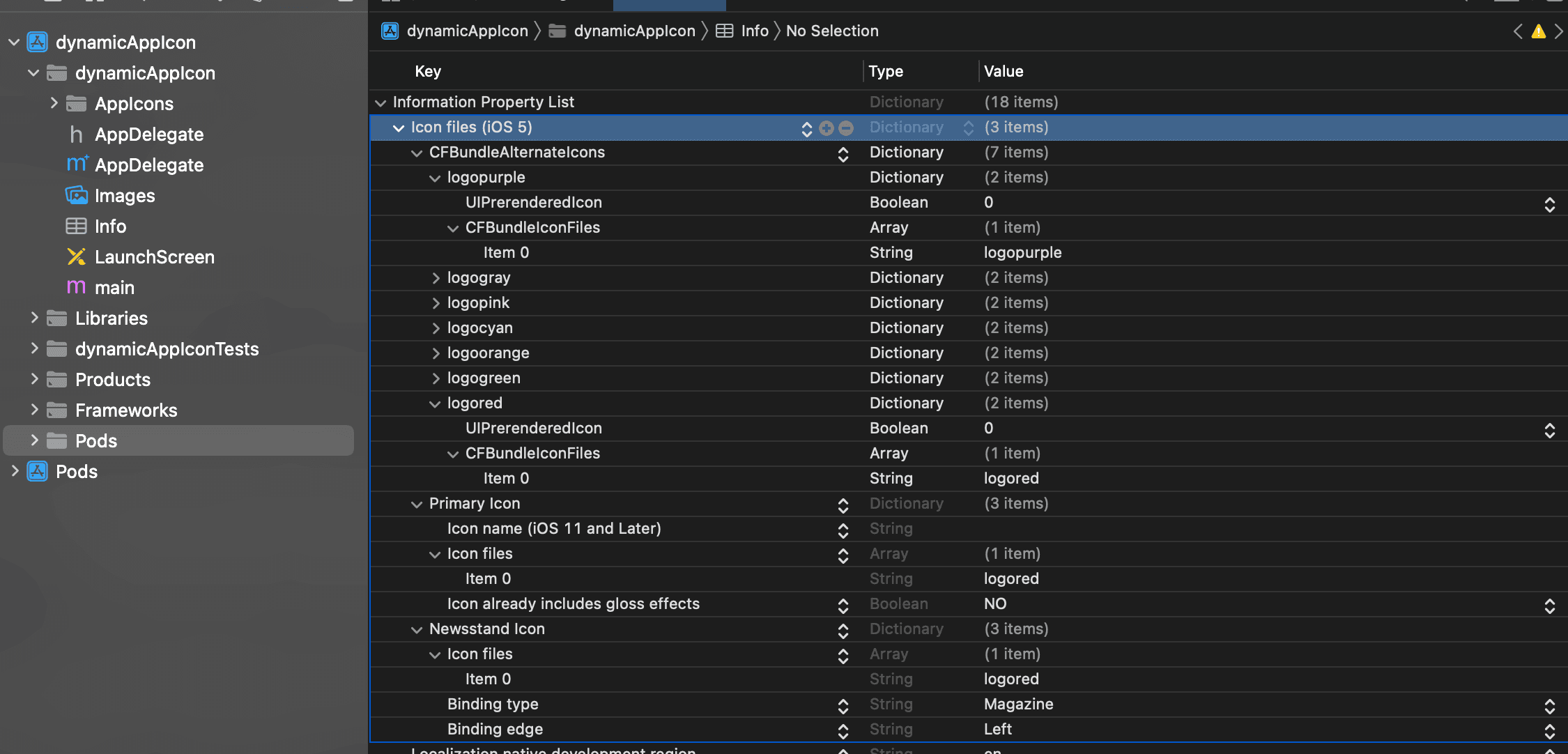
Icon files (iOS 5)to the Information Property List. - Add
CFBundleAlternateIconsas a dictionary to the Icon files (iOS 5) as it is used for the alternative icons. - Add dictionaries under
CFBundleAlternateIconsnamed as your icon names in theAppIconsgroup. - For each dictionary, these two properties
UIPrerenderedIconandCFBundleIconFilesneed to be configured. - Set the type of
UIPrerenderedIcontoStringand its value toNO. - Set the
typeofCFBundleIconFiles toArrayand set its first key,Item 0toString` with the value of the icon name. - set the default icon name in
Primary IconandNewsstand Icon->Icon files->Item 0.
Here's how:
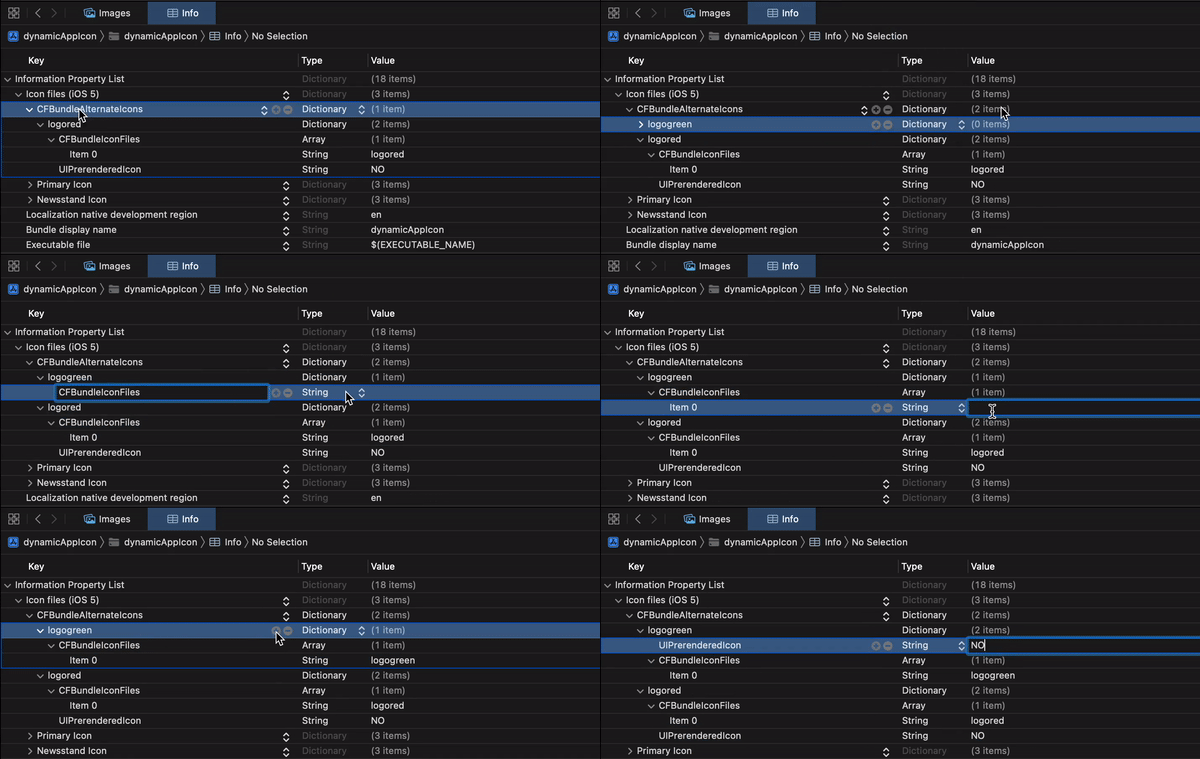
In the end, your Info.plist icon changes will look like this:
How To Use This In Your App?
Use the following code:
import { changeIcon, getIcon } from 'react-native-change-icon';

changeIcon('iconname');        // pass the icon name to change the icon

getIcon();                     // to get the currently active icon
Conclusion
We discussed how to change app icons dynamically in react-native without worrying about native code implementation.

Feel free to check out the working example.
I hope this article helped you to learn something new! Please share your thoughts in the comment box.
Happy Learning!! 🙂